
Rimo in ChatGPT
Connect Rimo to ChatGPT and ask about your meeting notes right inside the chat. ChatGPT looks things up in Rimo and answers:
- "What did we decide in Monday's call, according to my Rimo notes?"
- "Summarise last week's client meeting from Rimo."
There is nothing to install. You add one link in ChatGPT, sign in with your usual Rimo account in your browser, and you're done.
The link to add:
https://mcp.rimo.app/mcpUsing Claude, Gemini, or Microsoft Copilot instead? See Rimo in Claude, Rimo in Gemini, or Rimo in Microsoft Copilot. On your own machine with a coding tool (Claude Code, Cursor, Codex)? See Rimo in Coding Tools.
Before you start
- A Rimo account — the same one you normally sign in with, in a team / organization.
- A ChatGPT account on the web, on a plan that supports custom MCP plugins:
- Plus / Pro — you turn on Developer mode yourself.
- Business / Enterprise / Education — an administrator turns on custom connectors for the workspace first; then each member turns on Developer mode.
You never type a Rimo password or key into ChatGPT. You sign in on Rimo's own page, in your browser.
Turn on Developer mode
Custom MCP plugins live behind Developer mode, so it must stay on — if you turn it off, Rimo stops working in chat. It's a simple on/off toggle; you don't write any code.
Plus / Pro — turn it on yourself
- In ChatGPT, open Settings → Security and login.
- Turn Developer mode on.
Business / Enterprise / Education — an admin enables it first
- An administrator turns on custom connectors for the whole workspace, under Workspace Settings → Permissions & Roles → Connected Data → Developer mode / Create custom MCP connectors.
- Each member then turns on Developer mode for themselves, under Settings → Security and login → Developer mode.
Add the Rimo plugin
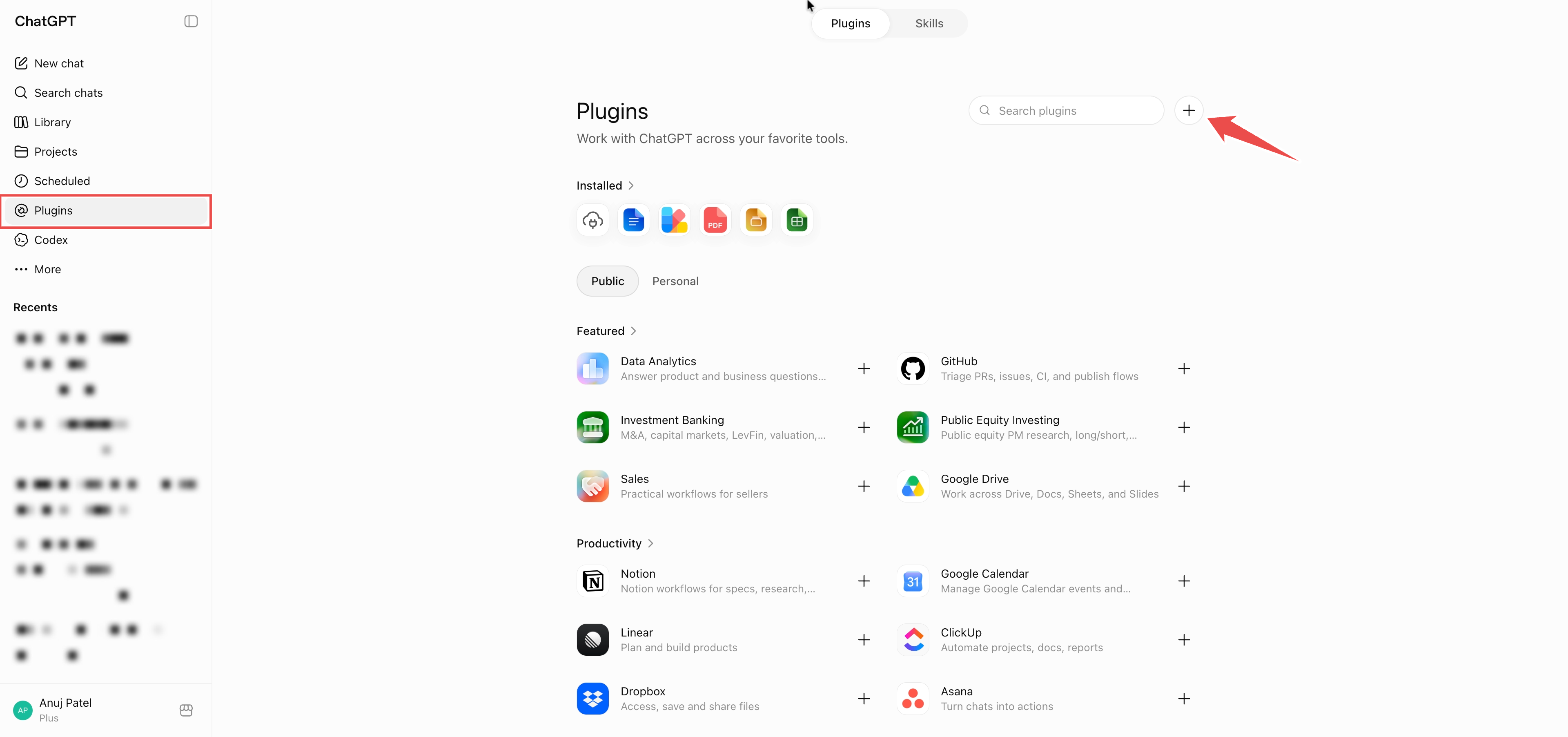
Open Settings → Plugins (or go to chatgpt.com/plugins).
Click the + at the top right.
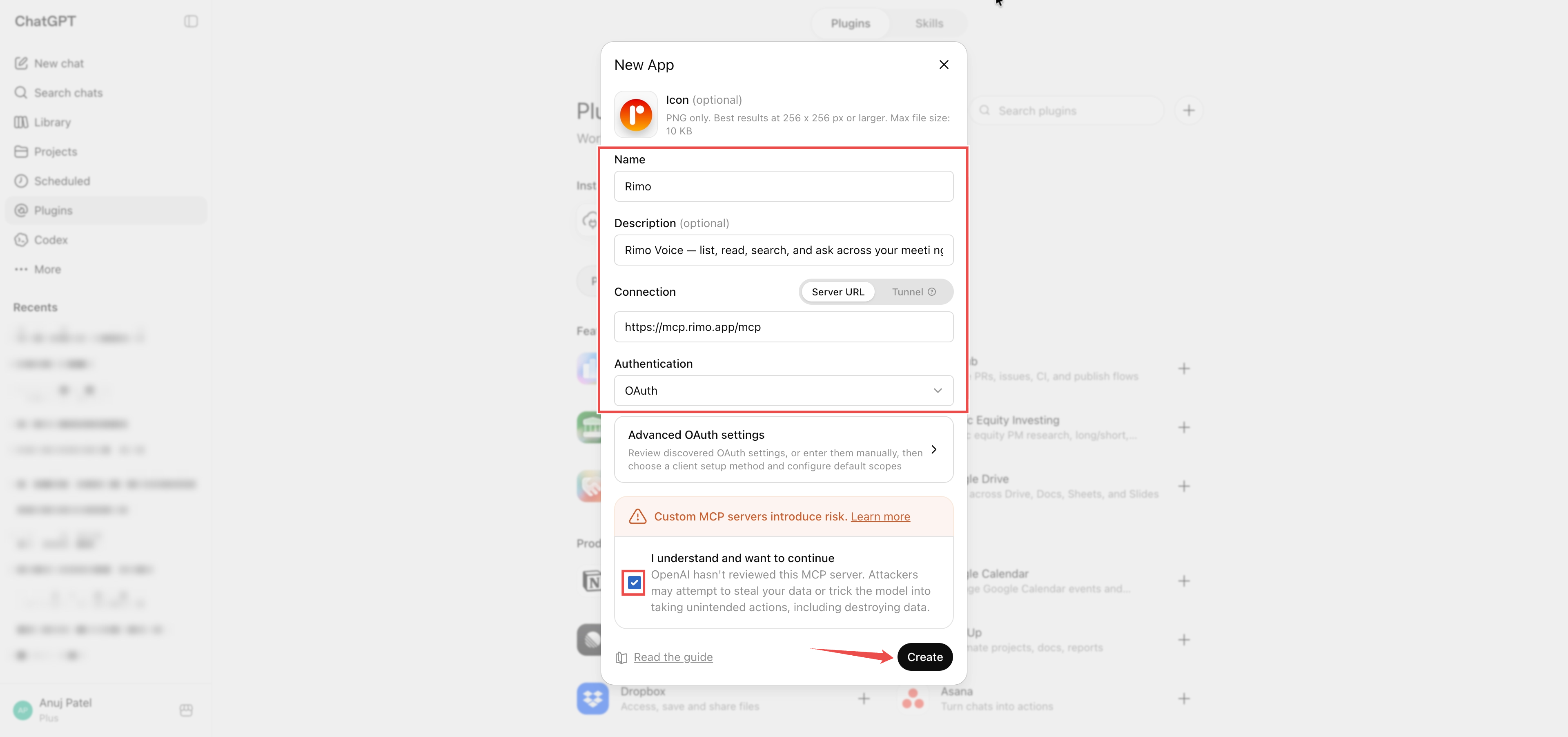
In the New App dialog, fill in:
- Name:
Rimo - Description:
Rimo — list, read, search, and ask across your meeting notes, transcripts, and documents. - Connection: keep Server URL and enter
https://mcp.rimo.app/mcp - Authentication: OAuth (you can leave Advanced OAuth settings as they are)
- Tick I understand and want to continue.
- Name:
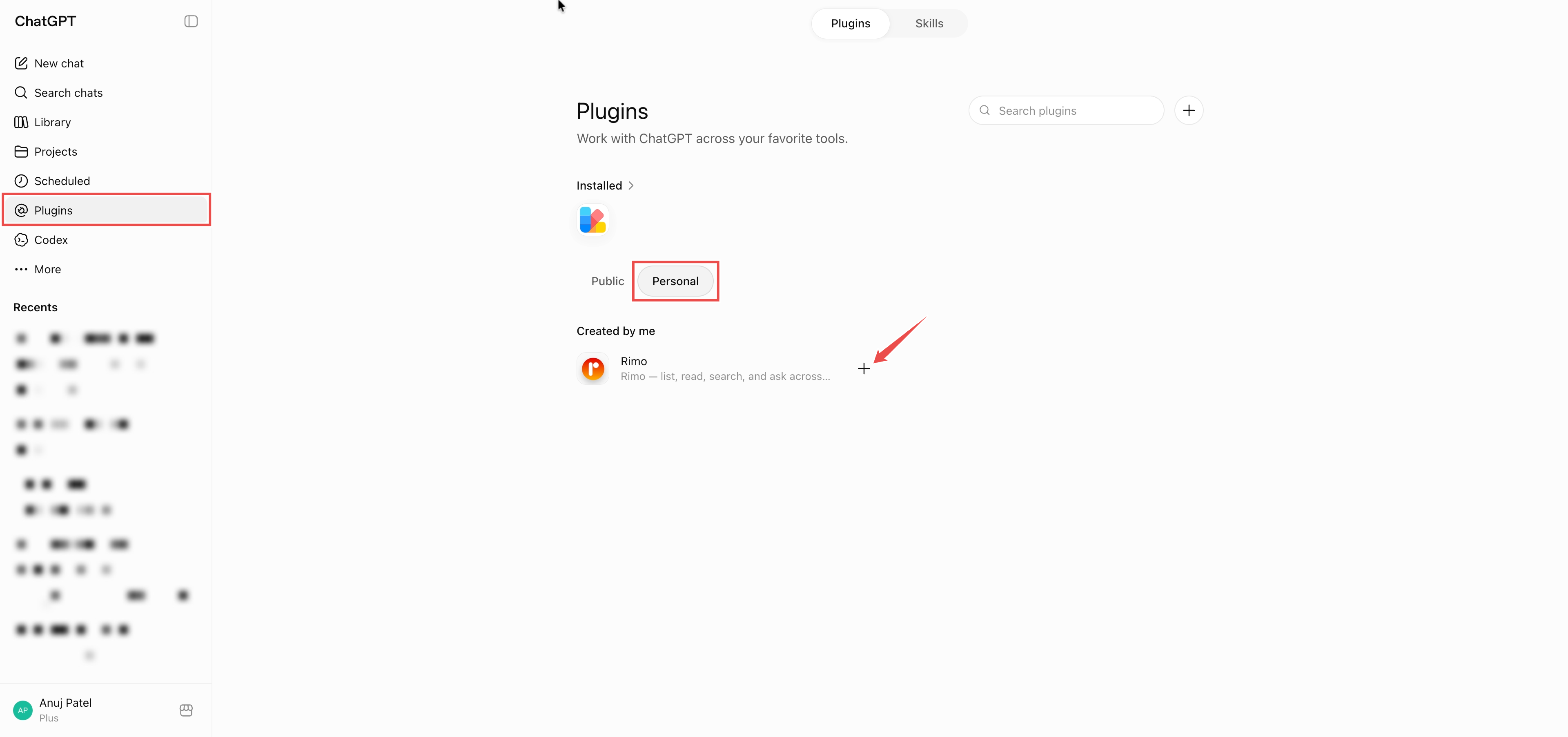
Click Create. The Rimo plugin now appears under Plugins → Personal → Created by me.
Sign in to Rimo
Under Plugins → Personal → Created by me, click the + next to Rimo to add it.
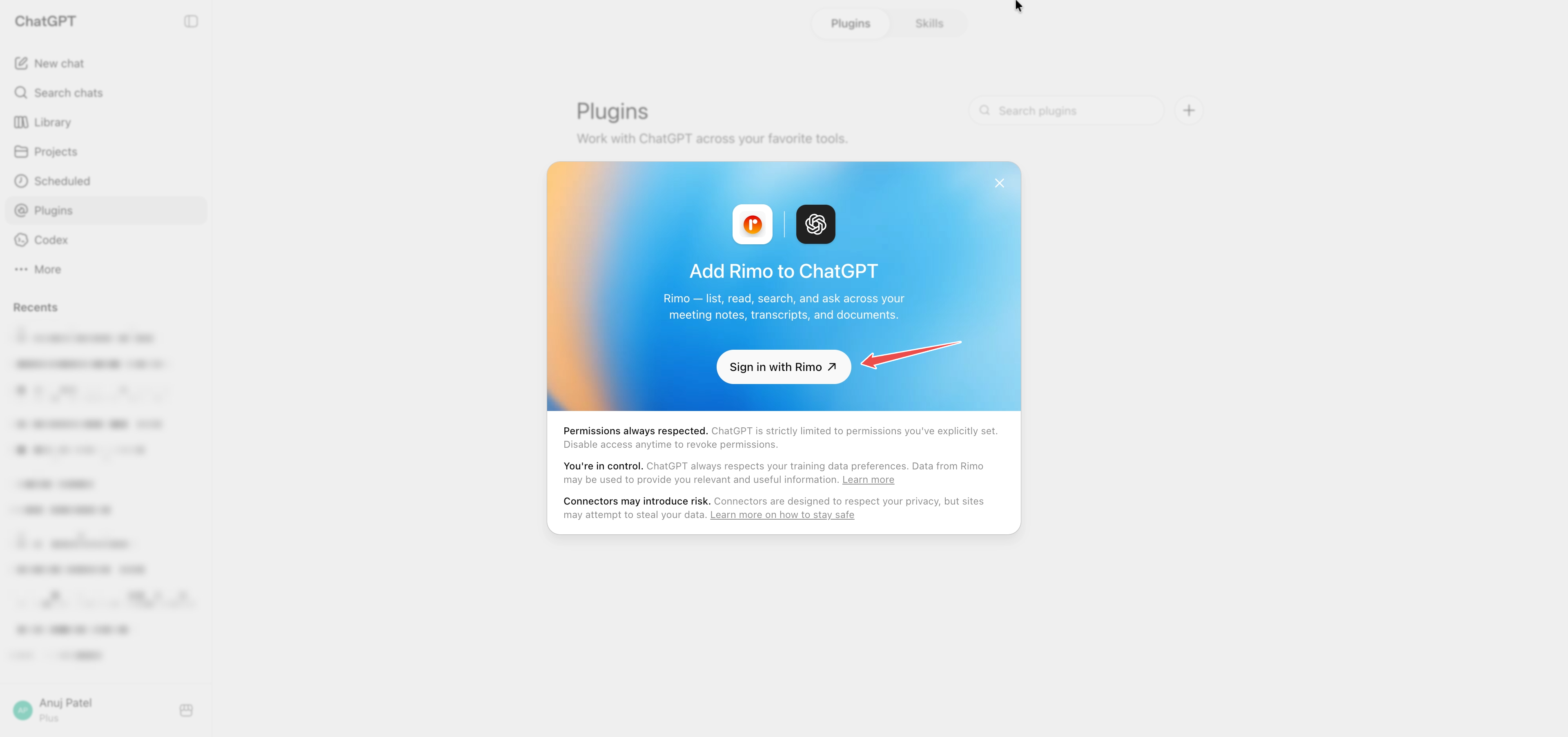
On the Add Rimo to ChatGPT screen, click Sign in with Rimo. ChatGPT opens a browser window on Rimo's own sign-in page.
Sign in to Rimo with your usual account.
Pick an organization and approve. The screen shows that ChatGPT is asking for access and asks which organization it may look at. Choose one — the Approve button stays greyed out until you do — then click Approve. (Deny cancels.)
You won't need to do this again unless you remove the plugin.
Use it in a chat
Start a new conversation.
Click the + button near the message box.
Pick Rimo from the menu.
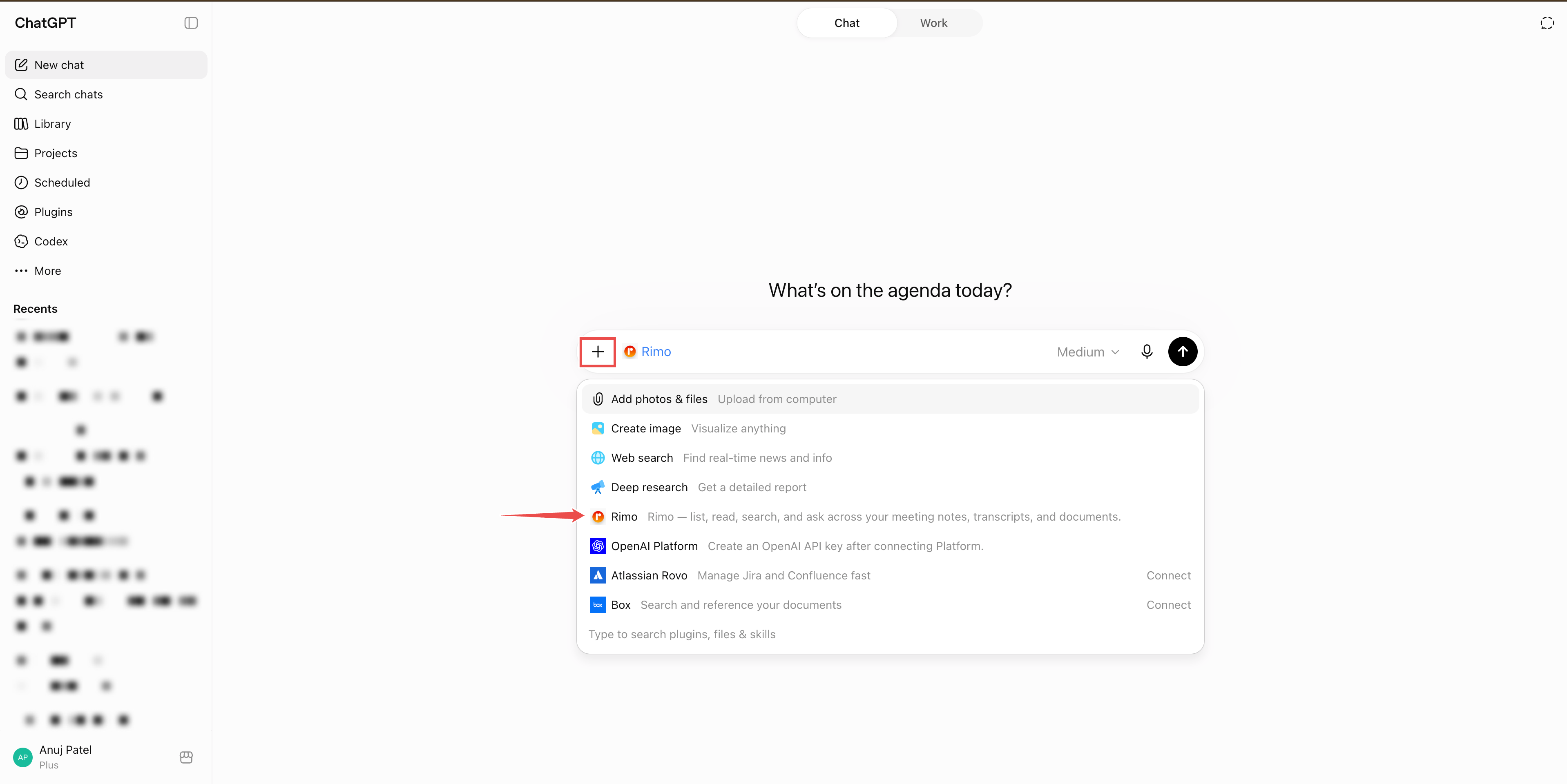
Ask, e.g. "Search my Rimo notes for the pricing discussion and tell me what we decided."
Codex
Codex — OpenAI's coding agent in the ChatGPT sidebar — connects to the same hosted Rimo server, but you add it as an MCP server rather than a plugin. Developer mode still has to be on (see Turn on Developer mode above).
In the Codex sidebar, click Plugins.
Click MCP.
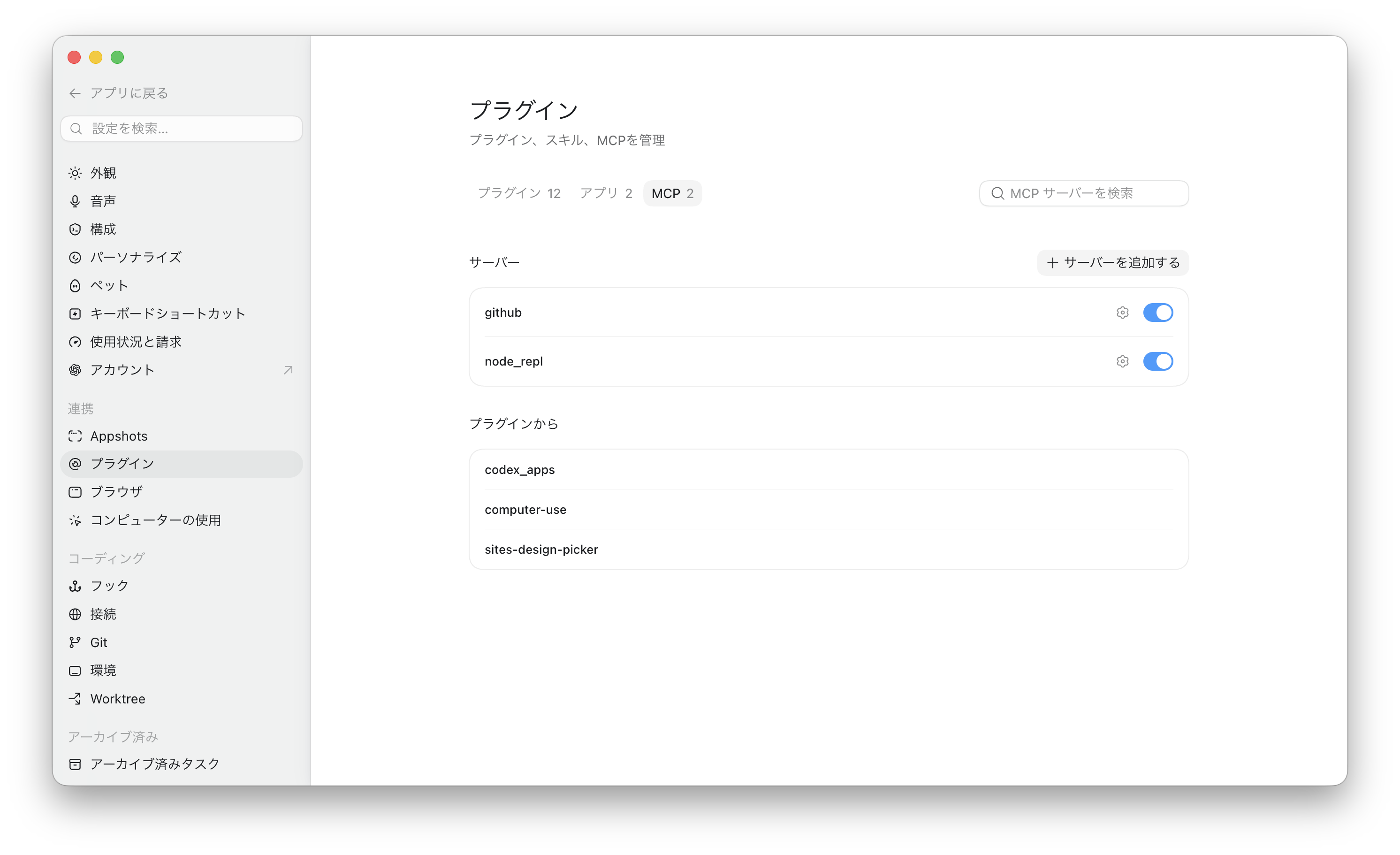
Add a new MCP server and fill in:
- Type: Streamable HTTP
- Name:
Rimo - URL:
https://mcp.rimo.app/mcp
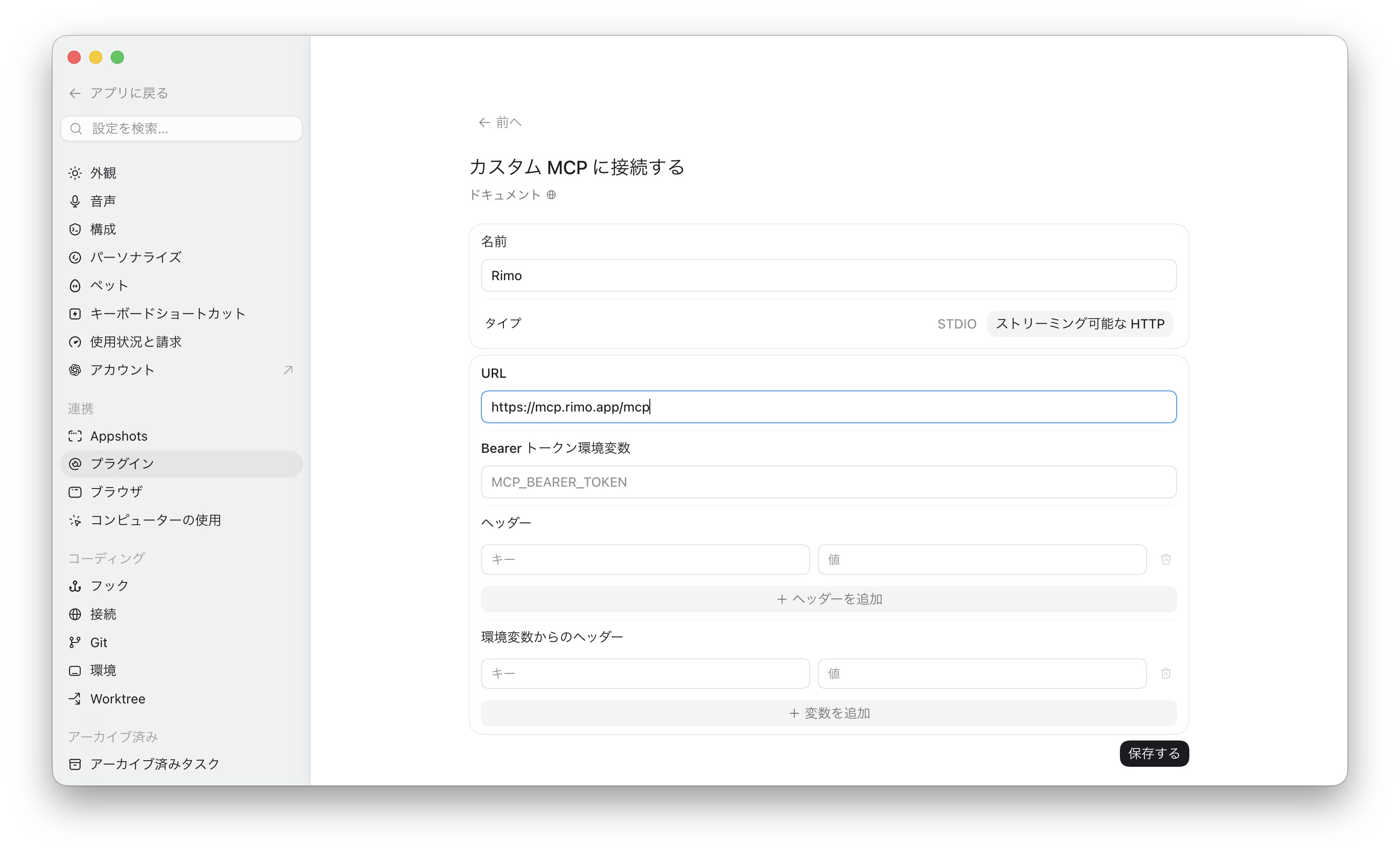
Save, then sign in with Rimo and approve your organization — the same browser sign-in as Sign in to Rimo above.
Once it's connected, ask Codex about your notes just like in a normal chat.
This is the Codex agent inside ChatGPT (the hosted server). For the Codex CLI on your own machine — which registers
rimo mcplocally via~/.codex/config.toml— see Rimo in Coding Tools instead.
Example things to ask
- "Show me my Rimo notes from this week."
- "Which Rimo meetings did I attend last sprint?"
- "Get the transcript of my last Rimo meeting."
- "Who was in that meeting?"
- "Find my Rimo notes about pricing strategy."
- "Find my notes about onboarding — even the ones that don't use that exact word."
- "Looking at my Rimo notes, what did we decide about the Q3 release?"
Rimo only ever shows ChatGPT what you can see in Rimo.
Switching organizations & turning it off
- One organization at a time. A connection looks at the single organization you picked when you signed in. To use a different one, remove the plugin and create it again, choosing the other organization.
- Turn it off any time. Remove the Rimo plugin in ChatGPT to disconnect. Access stops shortly after.
If something doesn't work
You can't find "Plugins" or the "+" to create one. Custom MCP plugins need a Plus, Pro, Business, Enterprise, or Education plan (on the web), with Developer mode on (Settings → Security and login → Developer mode). On Business / Enterprise / Education workspaces an administrator has to allow custom connectors first — ask whoever manages your ChatGPT workspace.
Rimo isn't available in a chat. Check that Developer mode is still on (Settings → Security and login). Turning it off disables custom MCP plugins, so Rimo disappears from chats until you turn it back on.
Sign-in works but "Approve" stays greyed out. Pick an organization on the sign-in screen first — then Approve becomes clickable.
ChatGPT can't find a note you know exists. It only sees what your own account can see, in the one organization you connected. If the note is in a different organization, reconnect and pick that one. A note a colleague never shared with you won't show up.
Official ChatGPT help
See also
- Rimo in Claude — the same thing for Claude
- Rimo in Gemini — the same thing for Gemini Spark
- Rimo in Microsoft Copilot — connect through a Copilot Studio agent using DCR
- Authentication — how Rimo sign-in and accounts work