
API keys
A personal API key lets rimo authenticate without a browser login — ideal for CI/CD pipelines, scripts, and scheduled jobs. You create the key once in the Rimo web app, then hand it to the CLI through the RIMO_API_KEY environment variable.
For everyday interactive use on your own machine, use rimo auth login instead. API keys are meant for automation, where no human is there to open a browser.
This guide covers:
- Creating a key — generate one in the Rimo web app.
- Using the key with the CLI — set
RIMO_API_KEY. - Managing your keys — view, track, and deactivate.
- Administrator settings — enable the feature and oversee keys org-wide.
Before you start
Personal API keys are off by default for an organization. Before anyone can create one, an organization administrator must enable them (see Administrator settings).
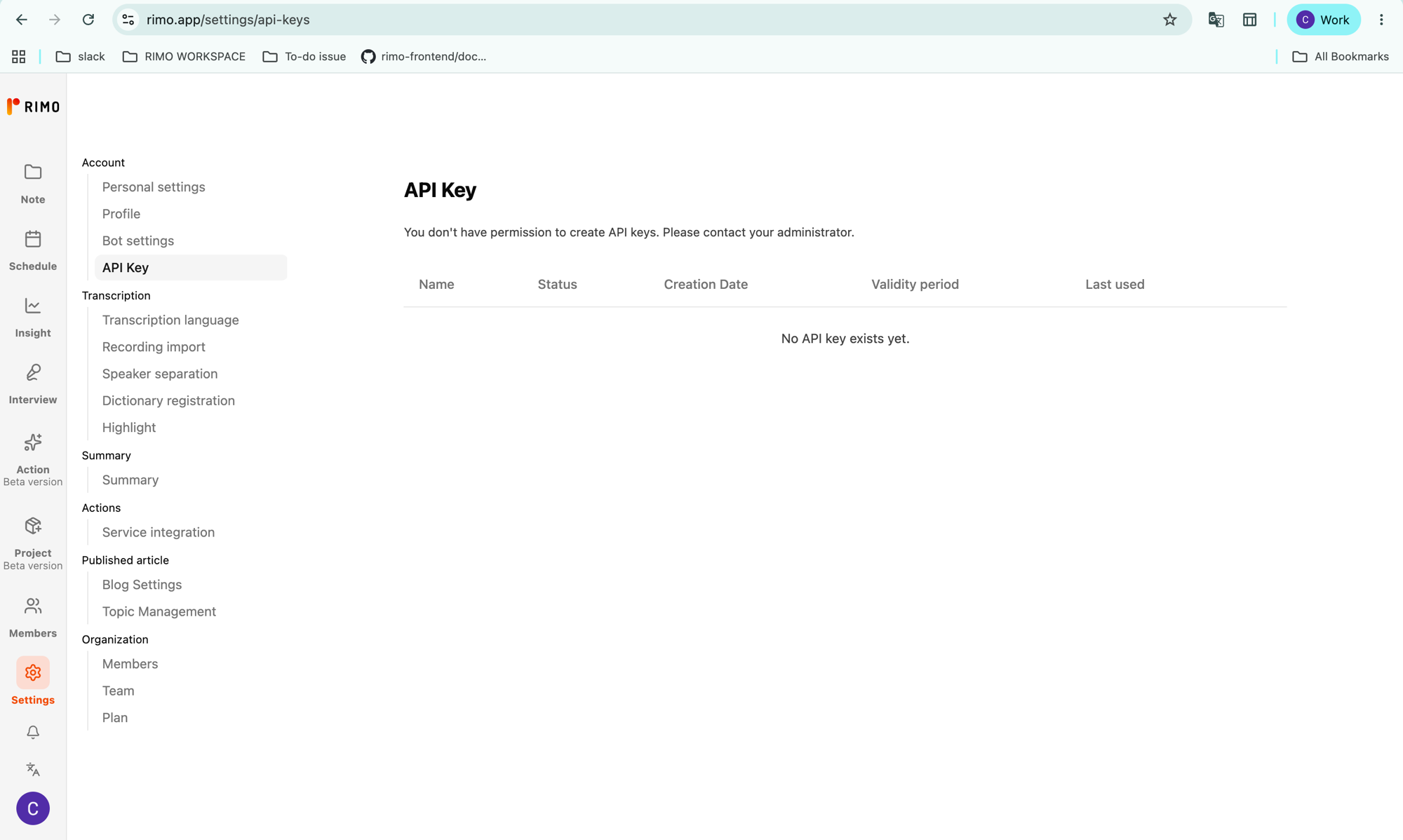
Until it's enabled, the API Key page shows "You don't have permission to create API keys. Please contact your administrator." and there is no Create key button. Ask your administrator to turn the feature on (see Administrator settings).
Creating a key
Keys are created in the Rimo web app, not from the CLI.
1. Open the API Key page
In the Rimo web app, go to Settings → API Key (rimo.app/settings/api-keys).
2. Create a key
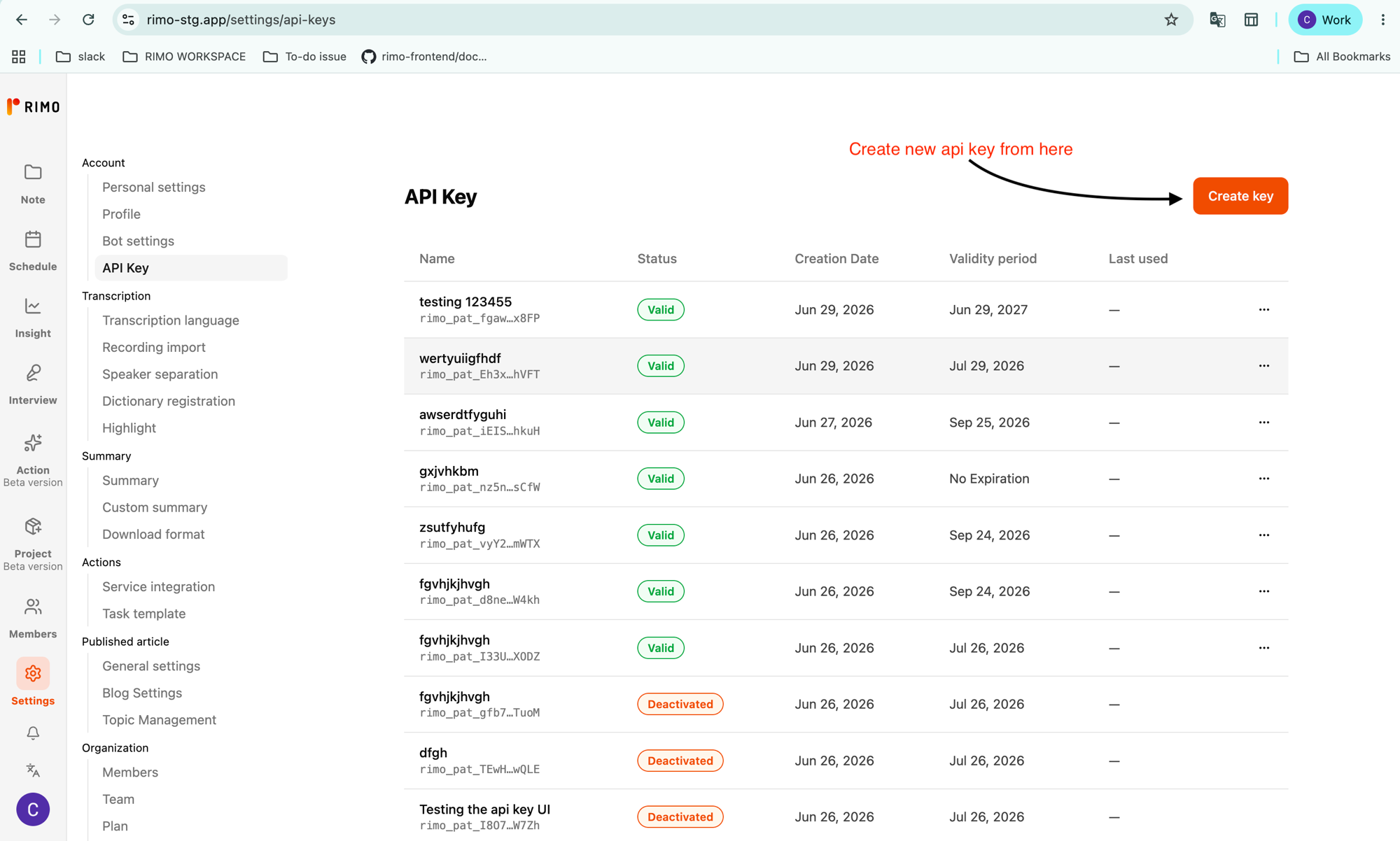
- Click Create key.
- Enter a Name that describes what the key is for — for example,
github-actions. (It's just a label; it doesn't affect what the key can do.) - Choose a Validity period:
- 30 days
- 90 days
- 1 year
- None (No Expiration) — the key stays valid until you deactivate it by hand. Use this only when you really need it; a key that never expires is riskier if it ever leaks.
- Click Create.
3. Copy the key — it's shown only once
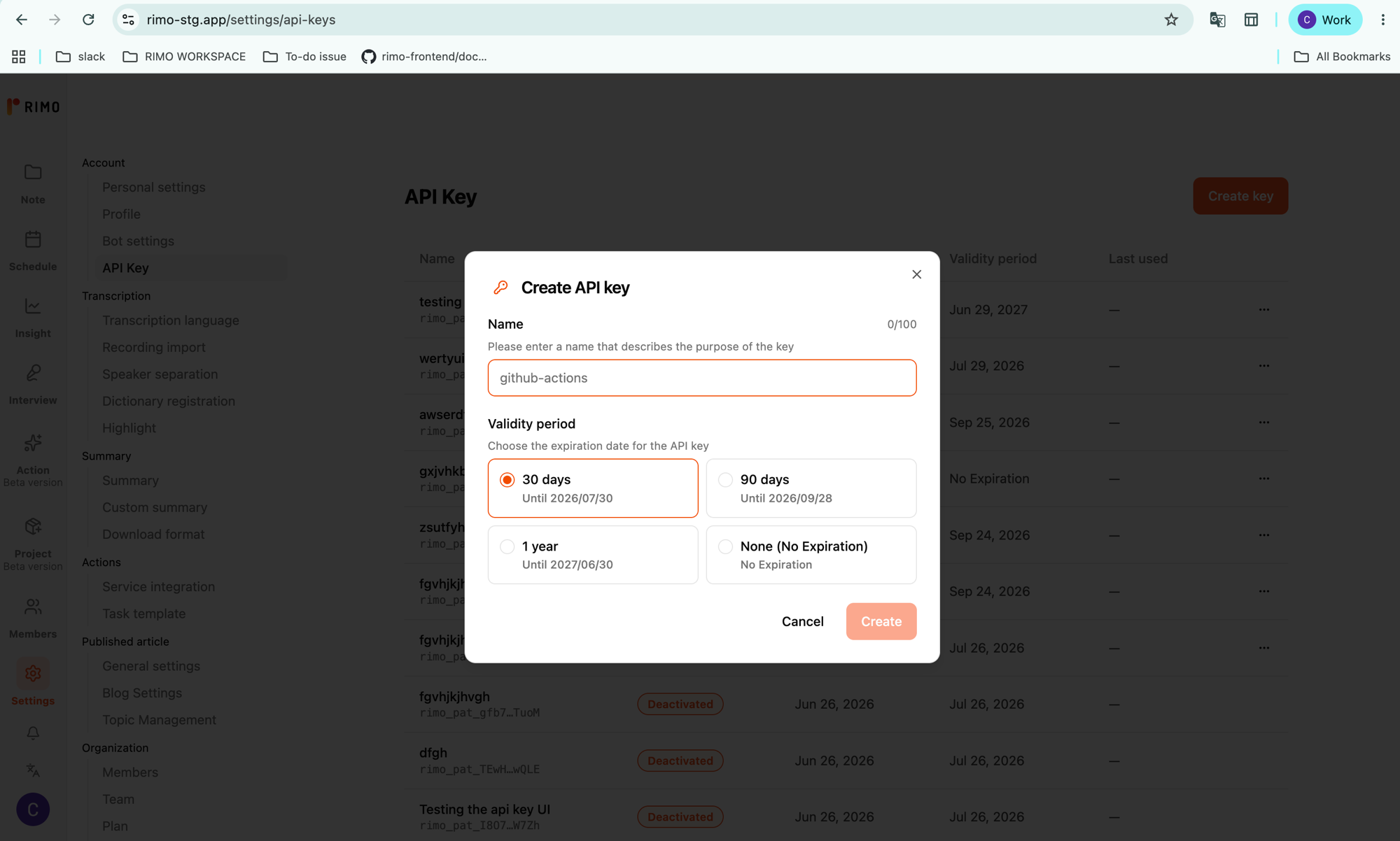
After creation, Rimo displays the key one time only. It starts with rimo_pat_.
- Click Copy.
- Paste it somewhere safe — a password manager, or your automation tool's secret store (see Using the key with the CLI). Never paste it into chat, email, or a file that gets committed to source control.
- Click Completed to close the dialog.
⚠️ Once you leave this screen, the key can never be shown again. If you lose it, you can't recover it — just deactivate it and create a new one.
Using the key with the CLI
rimo reads the key from the RIMO_API_KEY environment variable. Set it to the value you copied (the rimo_pat_… string):
export RIMO_API_KEY="rimo_pat_xxxxxxxxxxxxxxxxxxxxxxxxxxxxxxxxxxxxxxxxxxxx"

rimo note list        # works immediately — no `rimo auth login` needed
In a CI/CD system (GitHub Actions, GitLab CI, etc.), add RIMO_API_KEY as an encrypted secret rather than hard-coding it. For example, in GitHub Actions:
- run: rimo note search "Q3 release plan"
  env:
    RIMO_API_KEY: ${{ secrets.RIMO_API_KEY }}
A few things worth knowing:
RIMO_API_KEYtakes priority over a browser login on the same machine. When it is set,rimouses it and ignores the account fromrimo auth login. Unset it to fall back to your logged-in account.- An invalid or malformed key fails fast with a clear error, before any network call.
- See Authentication for the full token-resolution order and how interactive login compares.
Managing your keys
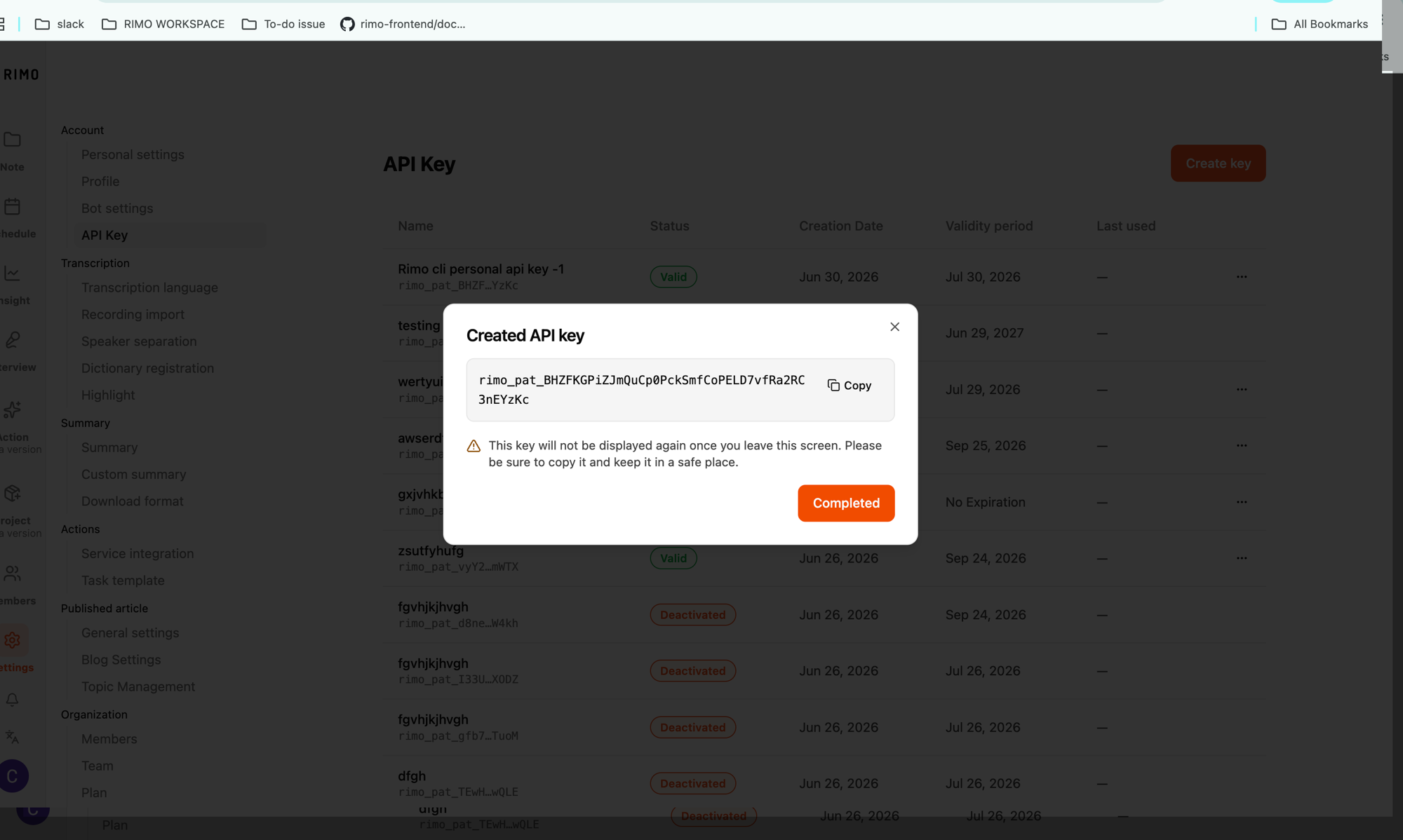
The API Key page lists every key you've created. For each one you can see:
- Name
- Status — see the values below
- Creation Date
- Validity period — the expiration date, or No Expiration
- Last used — when the key last authenticated a request (a dash
—if never used)
Status values:
| Status | Meaning |
|---|---|
| Valid | Active and usable. |
| N days remaining | Valid, but expiring soon (within 14 days). |
| Expired | Past its validity period; no longer works. |
| Deactivated | Manually switched off; no longer works. |
Deactivate a key
If a key is no longer needed — or you suspect it has leaked — deactivate it:
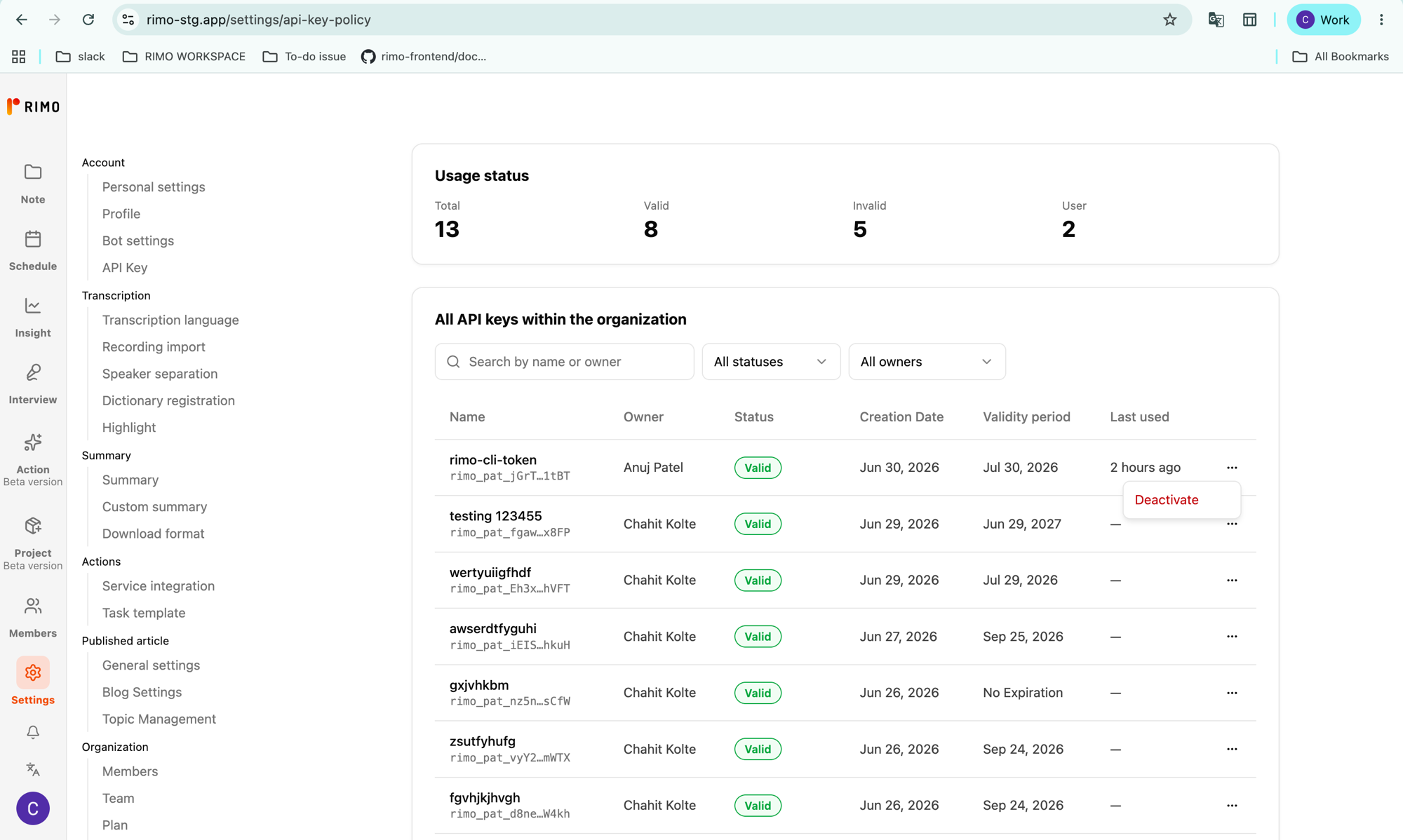
- Click the ⋯ (three-dots) menu on the key's row.
- Choose Deactivate and confirm.
⚠️ Deactivating is immediate and permanent — any automation using that key stops working right away, and it cannot be reactivated. Create a new key if you need one again.
Administrator settings
As an organization administrator you decide whether members can create keys, how many each may have, and you can oversee and shut off any key in the organization.
Open Settings → CLI API key management (rimo.app/settings/api-key-policy). This page is visible to administrators only.
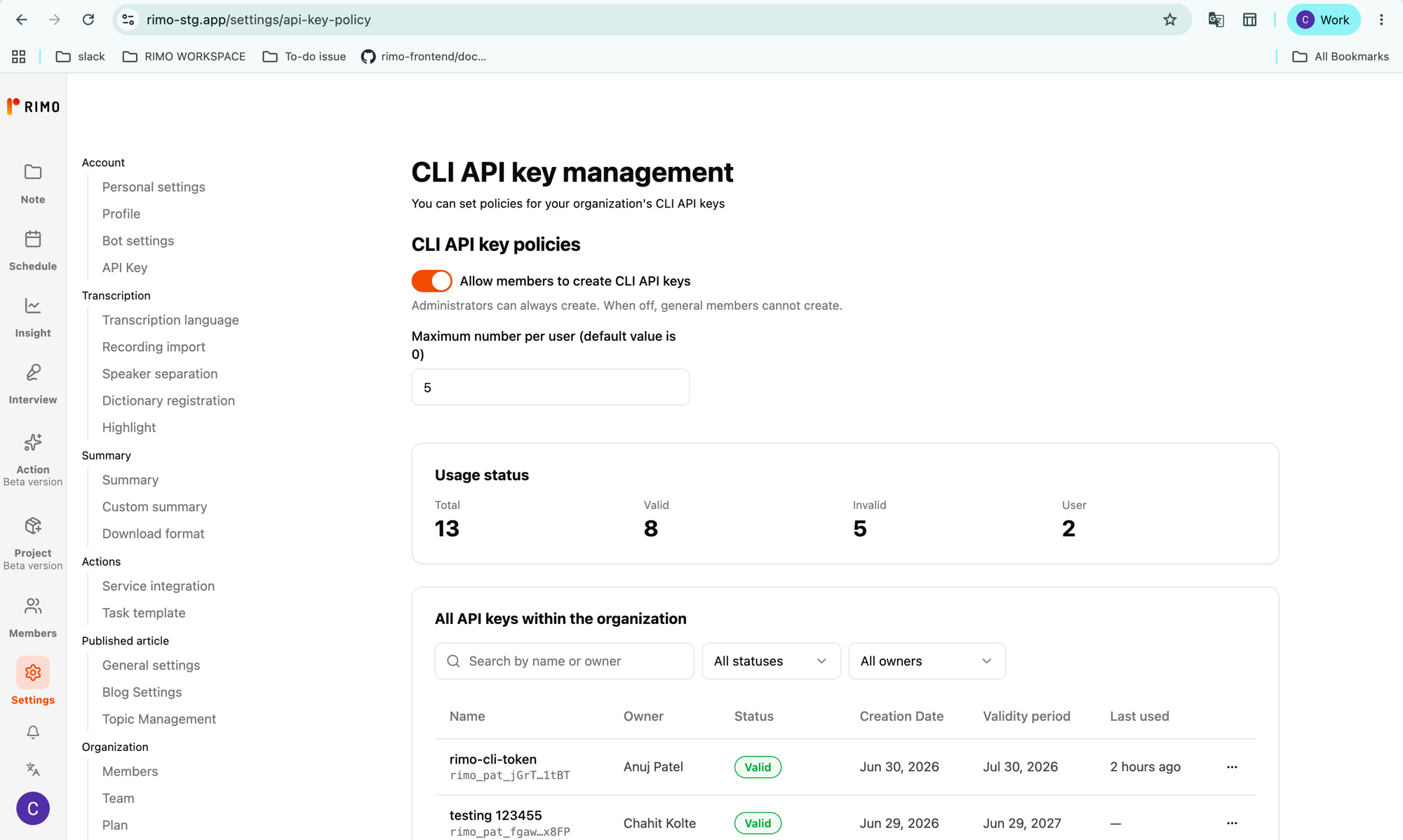
Allow members to create keys
The feature is off by default.
- Turn on Allow members to create CLI API keys to let regular members create their own.
- Administrators can always create keys, regardless of this setting. When it's off, regular members cannot.
Limit how many keys each member can have
Set Maximum number per user (default value is 0).
- 0 uses the platform default.
- Any other whole number caps how many keys a single member may hold. When a member hits the limit, they're told to deactivate an unused key or ask you to raise the cap.
Monitor and deactivate any key
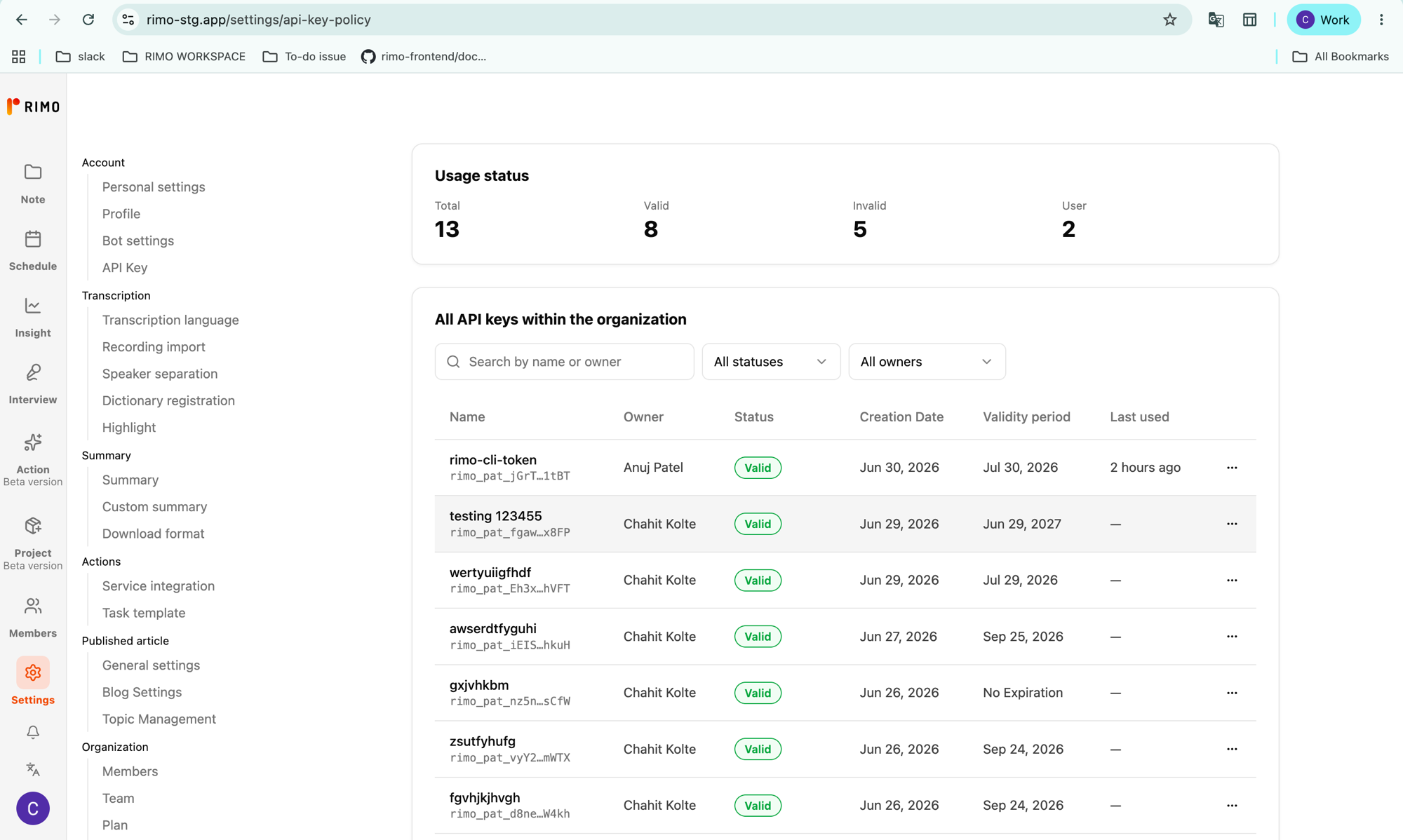
- Usage status shows org-wide totals: Total, Valid, Invalid, and the number of Users with keys.
- All API keys within the organization is a searchable, filterable table showing each key's Name, Owner, Status, Creation Date, Validity period, and Last used. Search by name or owner, or filter by status or owner.
To shut off any key — for example, if it may be compromised or belongs to someone who has left — open the ⋯ menu on that row and choose Deactivate. As with self-service, this is immediate and cannot be undone.
Troubleshooting
| What you see | What it means / what to do |
|---|---|
| "API Key" page or Create button is missing | Your admin hasn't enabled the feature, or your account isn't allowed to create keys. Ask your administrator. |
| You've reached the API key limit | You already hold the maximum number allowed. Deactivate an unused key, or ask your admin to raise the per-user limit. |
| The CLI reports an authentication error | Check that RIMO_API_KEY is set correctly and the key hasn't expired or been deactivated. Run rimo auth status to see how the CLI is resolving credentials. |
rimo auth login says the machine has no usable OS keyring | Containers and headless Linux without a Secret Service have nowhere to keep a browser session, so rimo auth login cannot work there. Create a key as above and set RIMO_API_KEY — it needs no local storage. |
| You lost the key | Keys can't be recovered after creation. Deactivate the old one and create a new key. |
Security notes
- Treat an API key like a password — anyone who has it can act as you in Rimo.
- Store keys only in secret managers / CI secrets, never in chat, email, or committed code.
- Prefer a validity period over No Expiration unless you have a specific reason.
- If a key might have leaked, deactivate it immediately and create a replacement.