
Rimo in Gemini
Connect Rimo to Gemini and ask about your meeting notes right inside Gemini Spark. Spark looks things up in Rimo and answers:
- "Show me my Rimo notes from last week."
- "Summarise last week's client meeting from Rimo."
There is nothing to install. You add one link in Gemini's settings, sign in with your usual Rimo account in your browser, and you're done.
The link to add:
https://mcp.rimo.app/mcpRimo goes in as a custom app for Spark — Google's term for an MCP server you add yourself. Everything below lives in Spark, not in ordinary Gemini chat.
Using Claude, ChatGPT, or Microsoft Copilot instead? See Rimo in Claude, Rimo in ChatGPT, or Rimo in Microsoft Copilot. On your own machine with a coding tool (Claude Code, Cursor, Codex)? See Rimo in Coding Tools.
Before you start
- A Rimo account — the same one you normally sign in with, in a team / organization.
- Gemini Spark on a Google AI Pro or Google AI Ultra plan. Your plan shows next to your name at the bottom of the Gemini sidebar.
- A computer. You add a custom app from Gemini on the web. Once it's connected it works in Spark on mobile too.
Spark and custom apps are both marked BETA and are still rolling out, so what you see can differ by account and region — Google lists the current conditions on its own help page. If the Custom apps for Spark section isn't there, that's why.
You never type a Rimo password or key into Gemini. You sign in on Rimo's own page, in your browser.
Add Rimo as a custom app
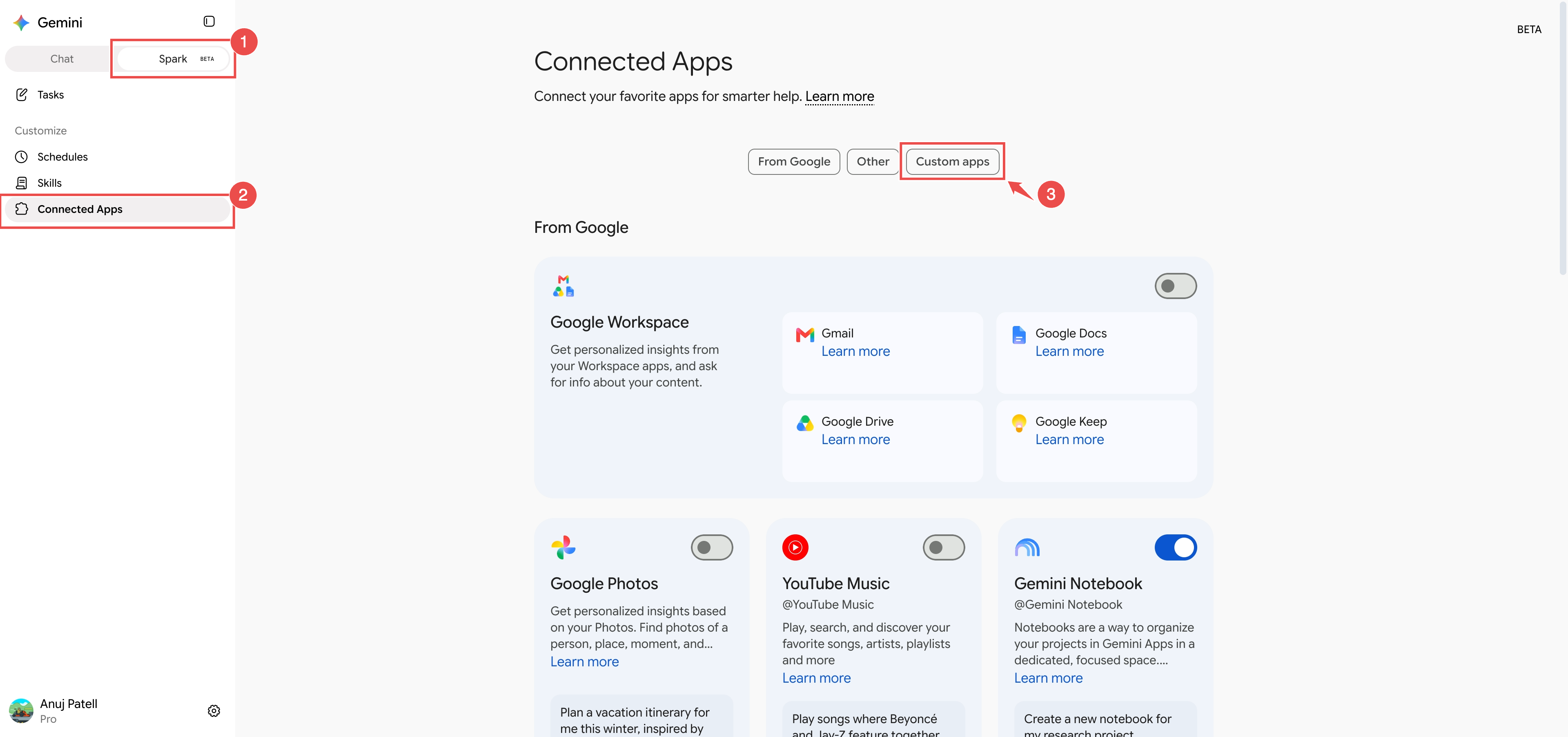
Open gemini.google.com on your computer and switch from Chat to Spark at the top of the sidebar.
In the sidebar, under Customize, click Connected Apps.
On the Connected Apps page, click the Custom apps tab.
Scroll to Custom apps for Spark. In Add a custom app link to get started, paste the Rimo MCP server URL and click Next.
https://mcp.rimo.app/mcp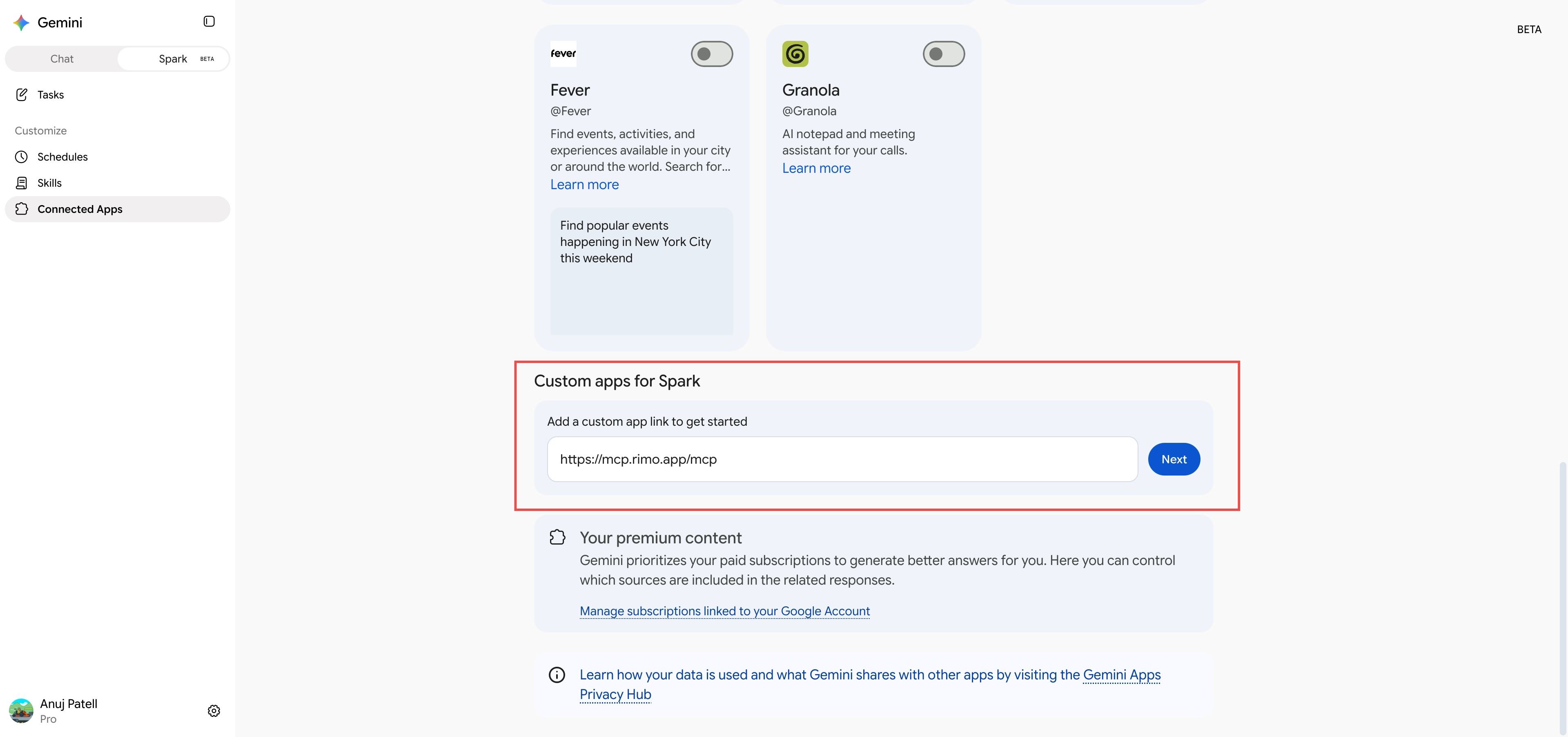
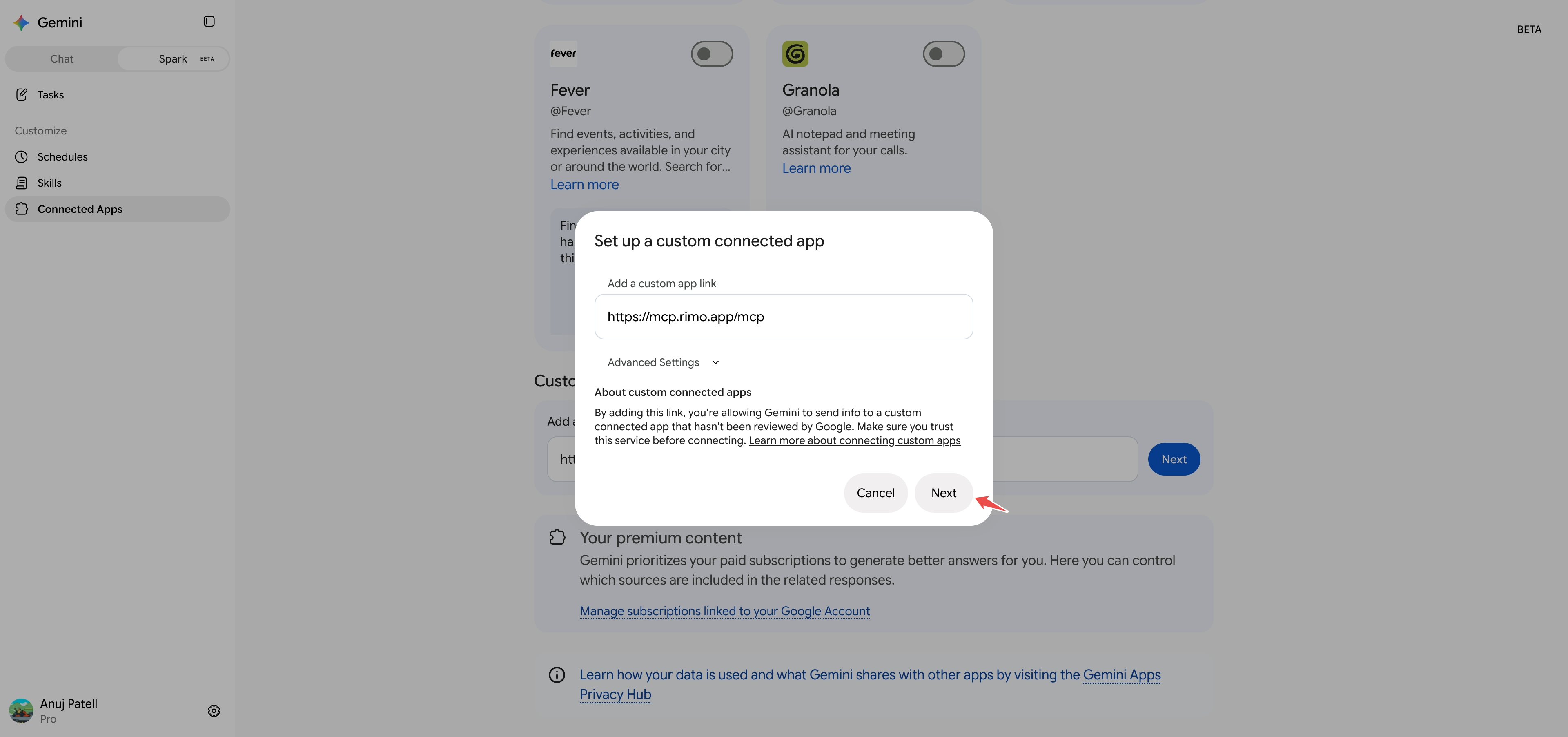
The Set up a custom connected app dialog opens with the link already filled in. Leave Advanced Settings alone and click Next.
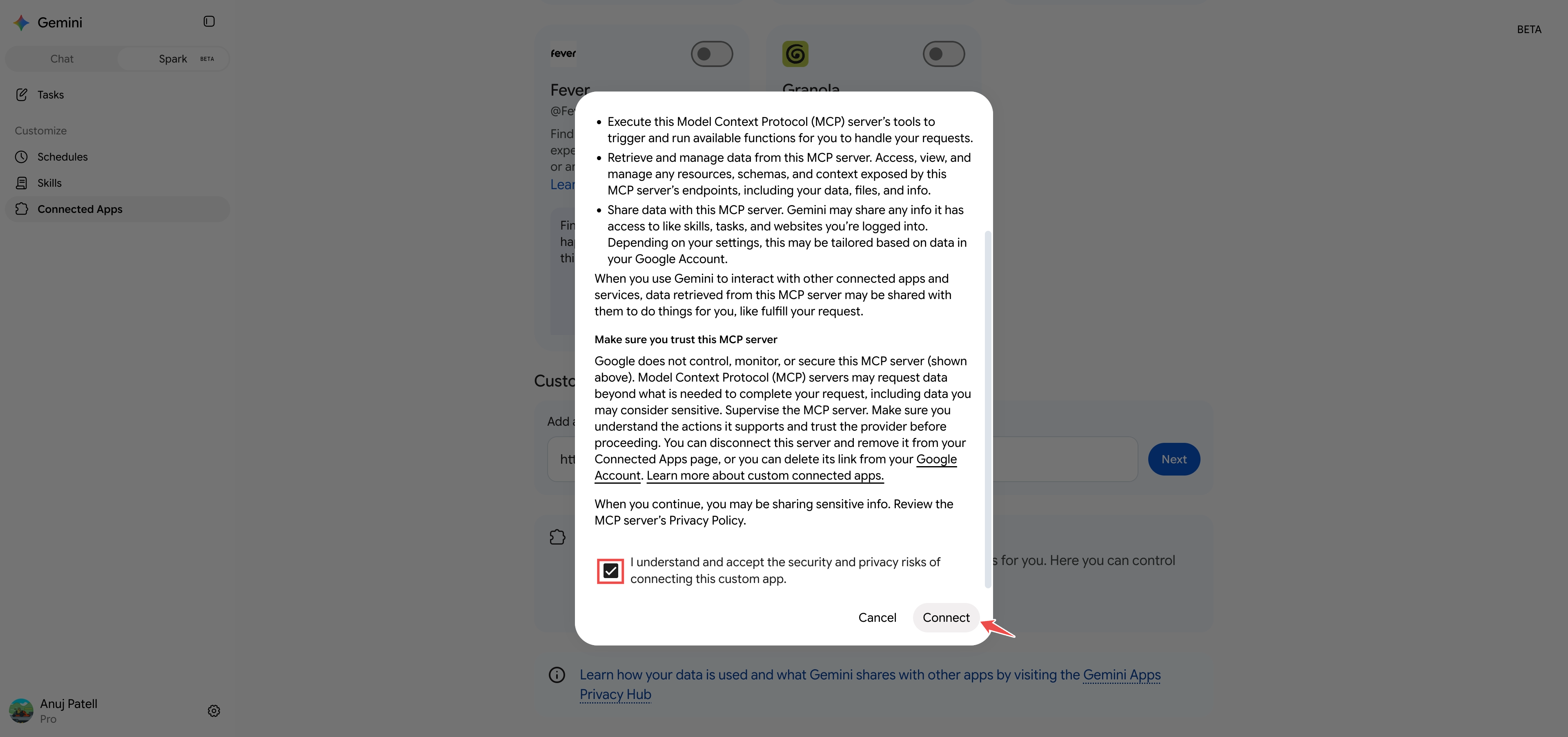
Tick I understand and accept the security and privacy risks of connecting this custom app, click Connect, then Agree and continue on the screens that follow.
Sign in to Rimo
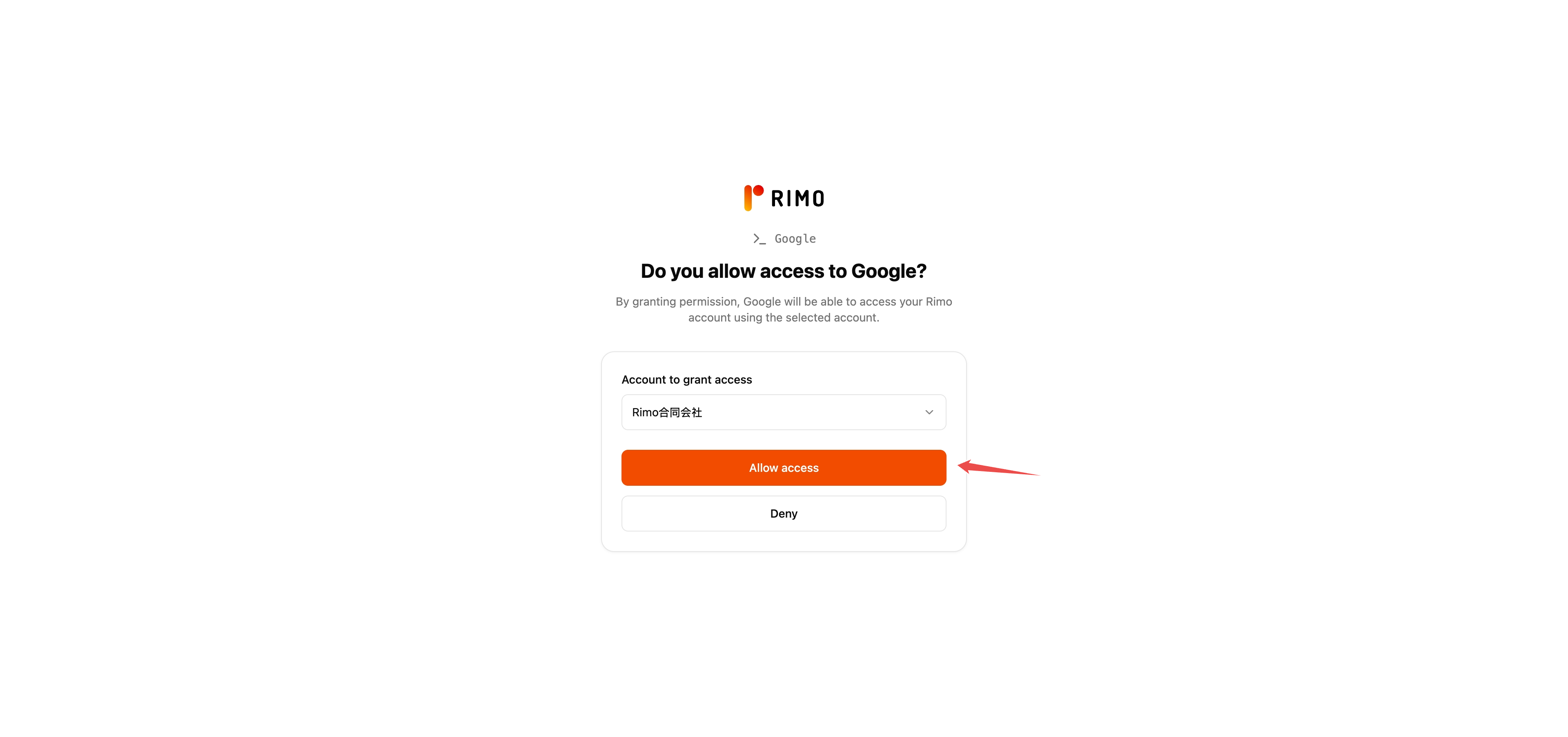
Gemini sends you to Rimo's own page, headed Do you allow access to Google?
Under Account to grant access, pick the account whose notes Gemini may look at.
Click Allow access. (Deny cancels.)
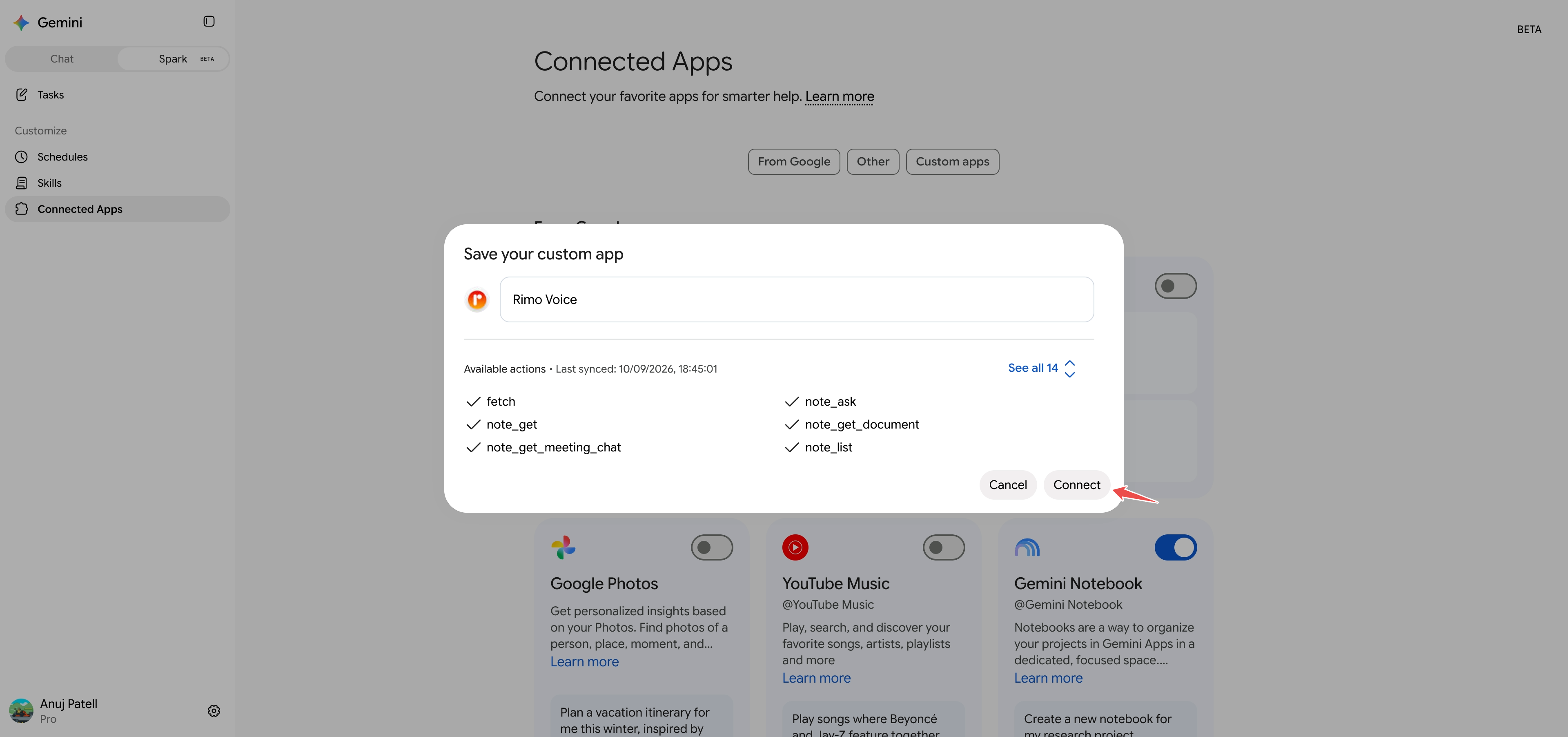
Back in Gemini, Save your custom app appears. The name is filled in as Rimo Voice — change it if you like — and Available actions lists the Rimo tools Gemini found. Click Connect.
Rimo Voice now sits under Custom apps for Spark with its toggle on, its handle @Rimo Voice, and when it last synced.
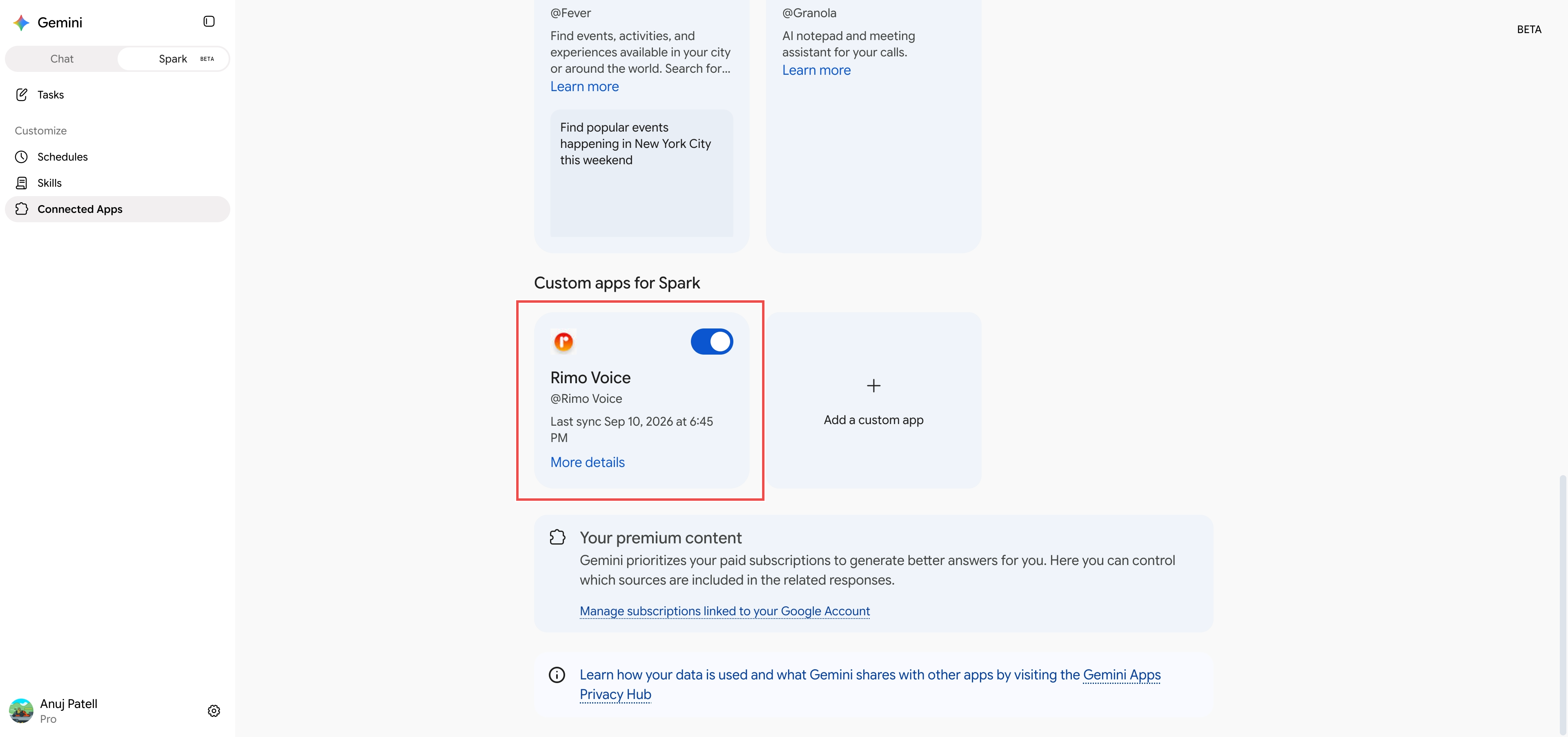
You won't need to do this again unless you disconnect or remove the app.
Use it in Spark
In Spark, open Tasks and click Describe a task.
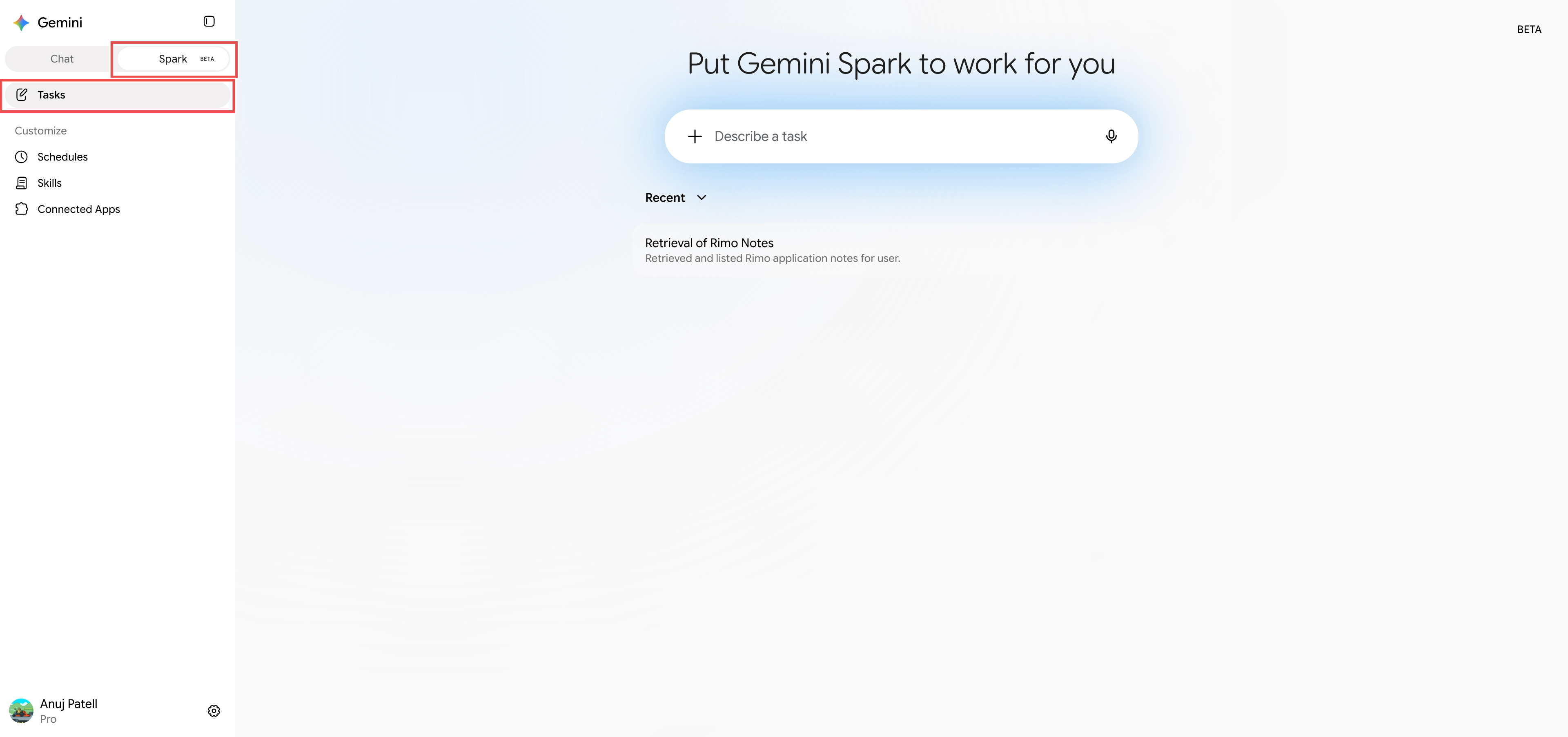
Ask in plain language — you don't have to name the app, and Spark will reach for Rimo on its own. To point it at Rimo explicitly, mention @Rimo Voice in your prompt.
Spark runs it as a task and shows what it did, e.g. "Show me my Rimo notes from last week."
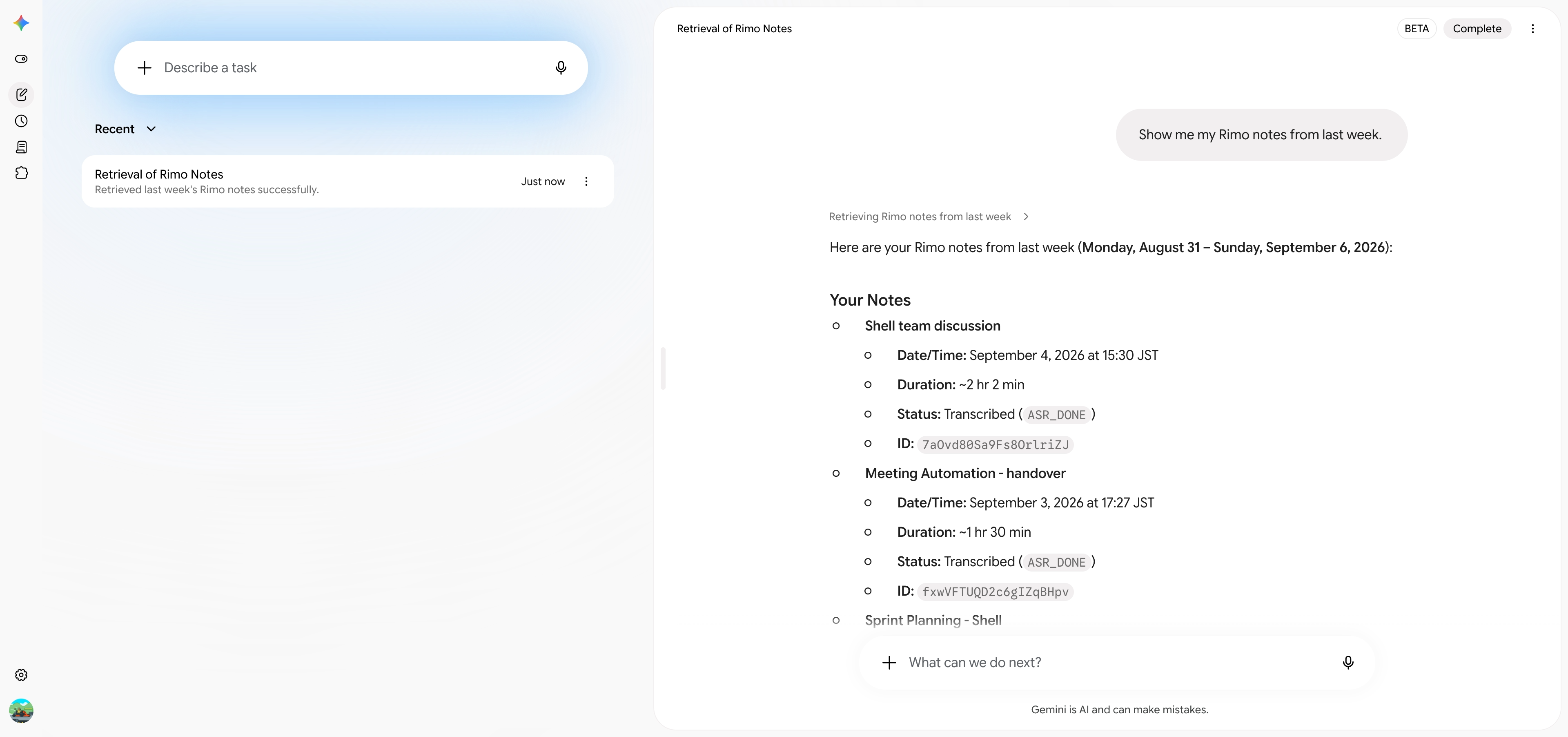
Example things to ask
- "Show me my Rimo notes from this week."
- "Which Rimo meetings did I attend last sprint?"
- "Get the transcript of my last Rimo meeting."
- "Who was in that meeting?"
- "Find my Rimo notes about pricing strategy."
- "Find my notes about onboarding — even the ones that don't use that exact word."
- "Looking at my Rimo notes, what did we decide about the Q3 release?"
Rimo only ever shows Gemini what you can see in Rimo.
Switching accounts & turning it off
- One account at a time. A connection looks at the single account you picked on the Do you allow access to Google? page. To use a different one, remove the app and add it again, choosing the other account.
- Turn it off for now. On the Rimo Voice card under Custom apps for Spark, switch the toggle off. The app stays set up; Spark just stops using it.
- Disconnect. Click More details on the card and choose to disconnect. This revokes the access you granted but keeps the app in your settings, so you can sign in again later.
- Remove it. Use More details to remove the app, which unlinks the server from your Google Account.
If something doesn't work
There's no "Custom apps for Spark" section. Check that you're on Spark rather than Chat, and on the Custom apps tab of Connected Apps. Custom apps need a Google AI Pro or Ultra plan and are still rolling out — see Before you start.
Spark never uses Rimo. Make sure the Rimo Voice toggle is on under Custom apps for Spark, and that you're in Spark → Tasks rather than ordinary Gemini chat. Naming @Rimo Voice in the prompt removes any doubt.
Gemini can't find a note you know exists. It only sees what your own account can see, in the one account you granted access to. If the note belongs to a different organization, remove the app, add it again, and pick that one on the Do you allow access to Google? page. A note a colleague never shared with you won't show up.
Rimo's tools look out of date. The card shows when it last synced. Removing and re-adding the app gets you a fresh tool list.
It worked before and now it doesn't. Open More details on the card: if it shows as disconnected, connect and sign in again.
Official Gemini help
See also
- Rimo in Claude — the same thing for Claude
- Rimo in ChatGPT — the same thing for ChatGPT
- Rimo in Microsoft Copilot — connect through a Copilot Studio agent using DCR
- What you can do with MCP — the tools and example prompts, the same for every client
- Authentication — how Rimo sign-in and accounts work