
Rimo in Genspark
Ask about your meetings without leaving Genspark. You add Rimo to Genspark once as a custom MCP server, sign in with your own Rimo account, and then ask in plain language — "Give me a list of my projects at Rimo" — and Genspark looks the answer up in your meeting notes and replies.
The server URL to add:
https://mcp.rimo.app/mcpUsing Claude, ChatGPT, Gemini, Notion, or Microsoft Copilot instead? See Rimo in Claude, Rimo in ChatGPT, Rimo in Gemini, Rimo in Notion, or Rimo in Microsoft Copilot. On your own machine with a coding tool (Claude Code, Cursor, Codex)? See Rimo in Coding Tools.
Before you start
- A Genspark account — the one you sign in with at genspark.ai. Nothing to install.
- A Rimo account — the same one you normally sign in with, in an organization.
You never type a Rimo password or key into Genspark. You sign in on Rimo's own page, in your browser.
Add Rimo to Genspark
1. Open Genspark's settings
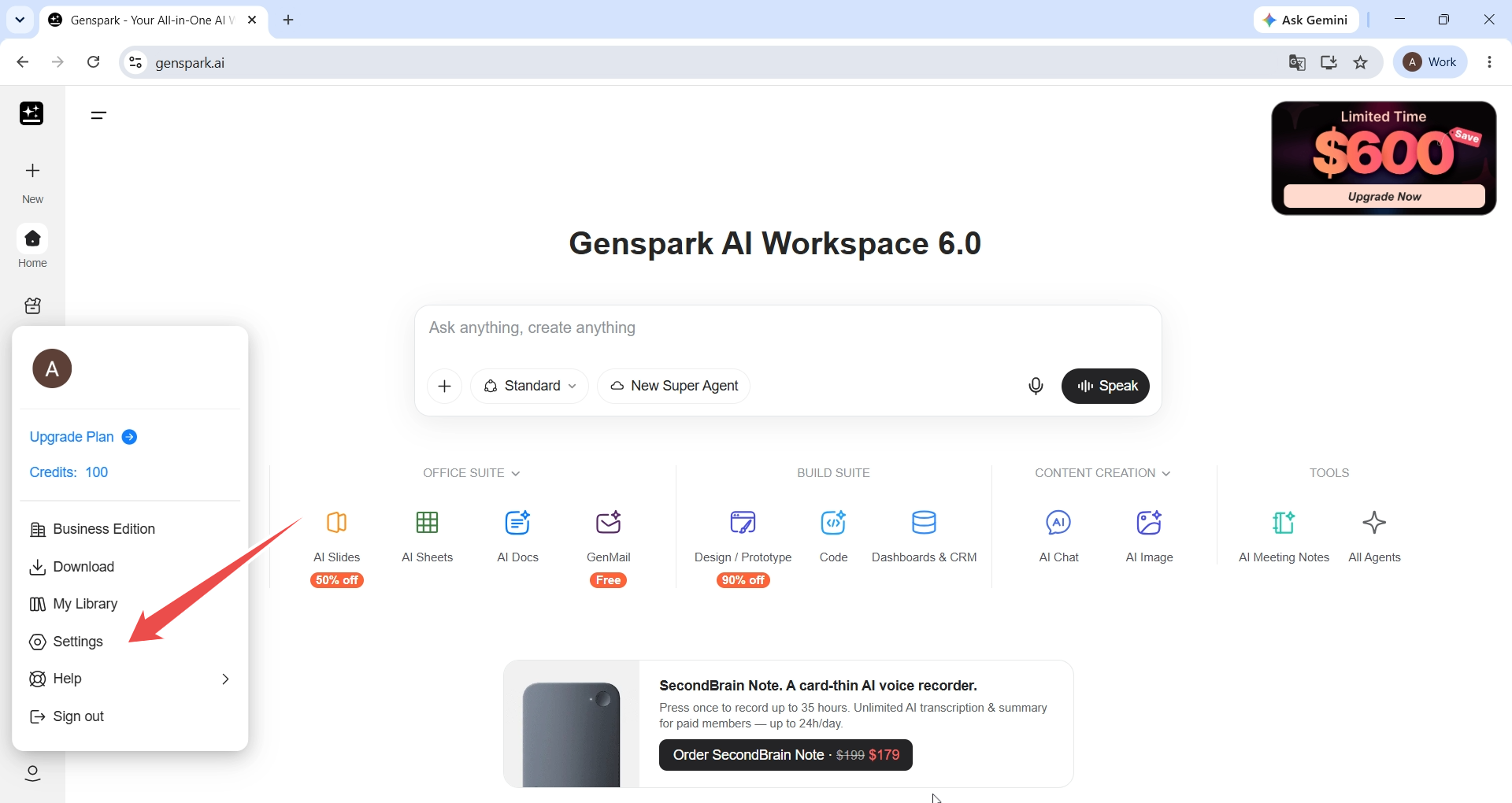
Sign in to Genspark, open your account menu at the bottom of the left sidebar, and select Settings.
2. Go to Connector
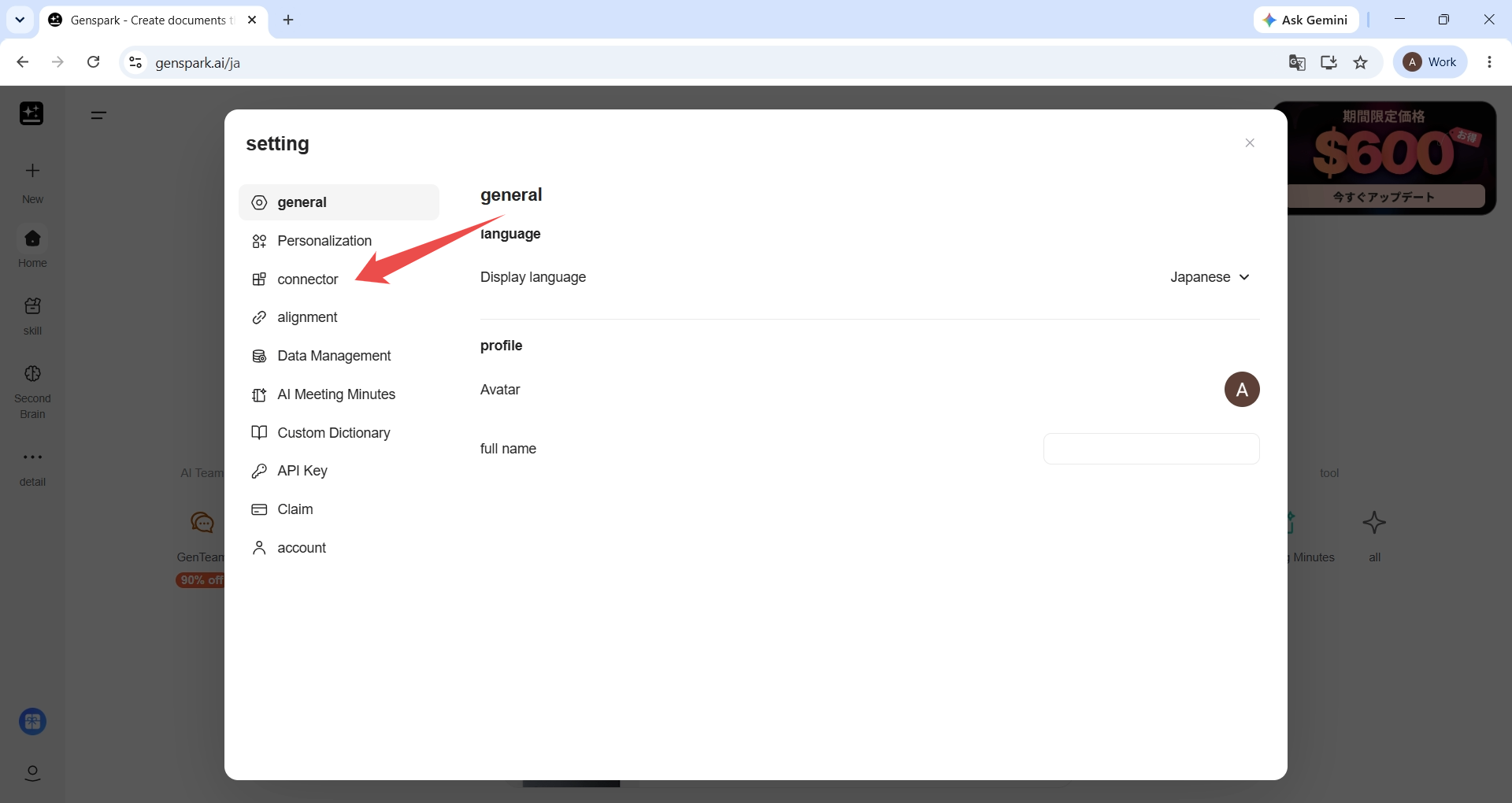
In the settings dialog, select Connector from the list on the left.
3. Add a connector
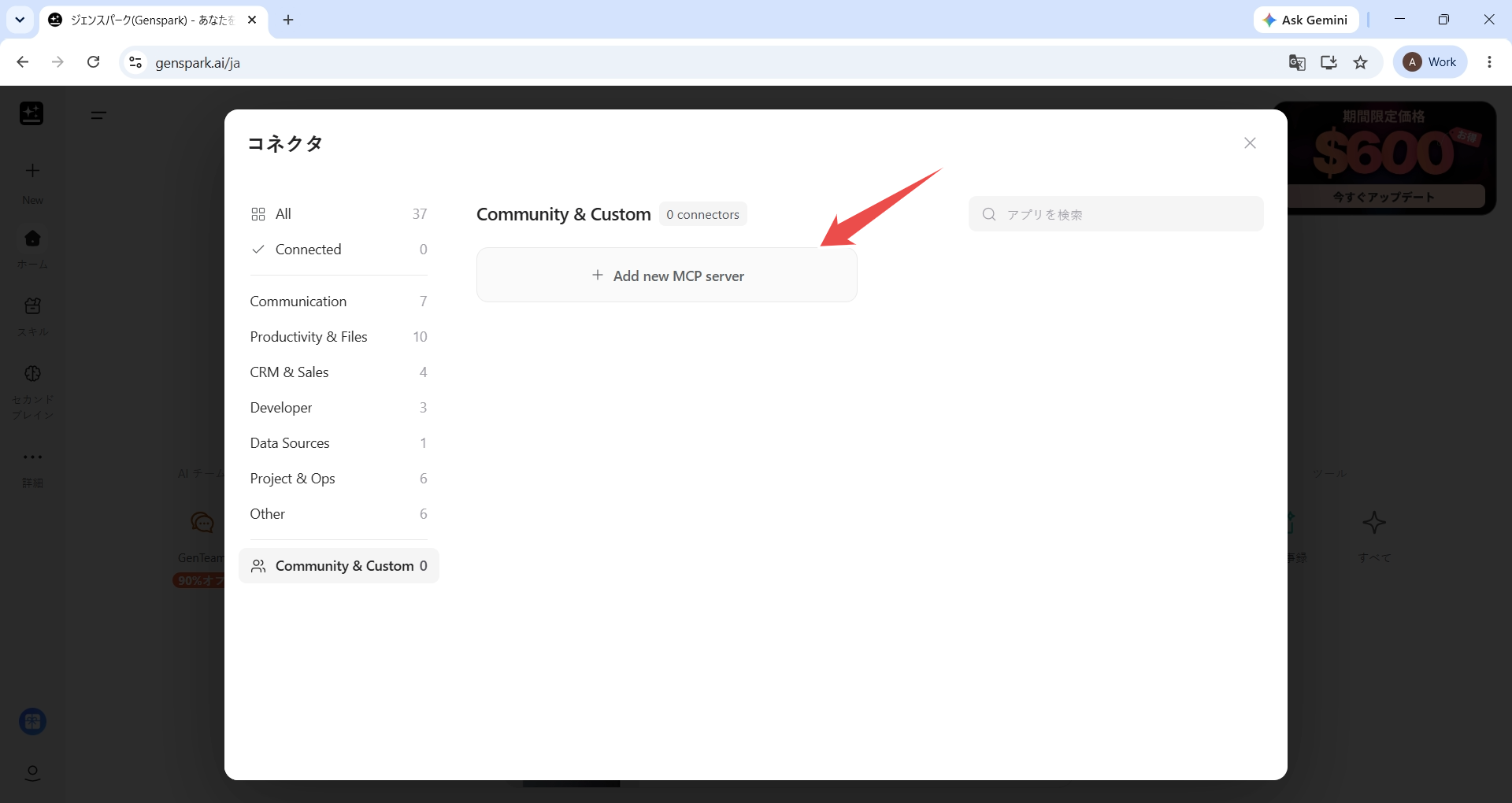
On the Connector page, select Add connector. Genspark's connector catalogue opens.
4. Open Community & Custom
In the catalogue, select Community & Custom at the bottom of the category list, then select Add new MCP server.
5. Enter the Rimo server details
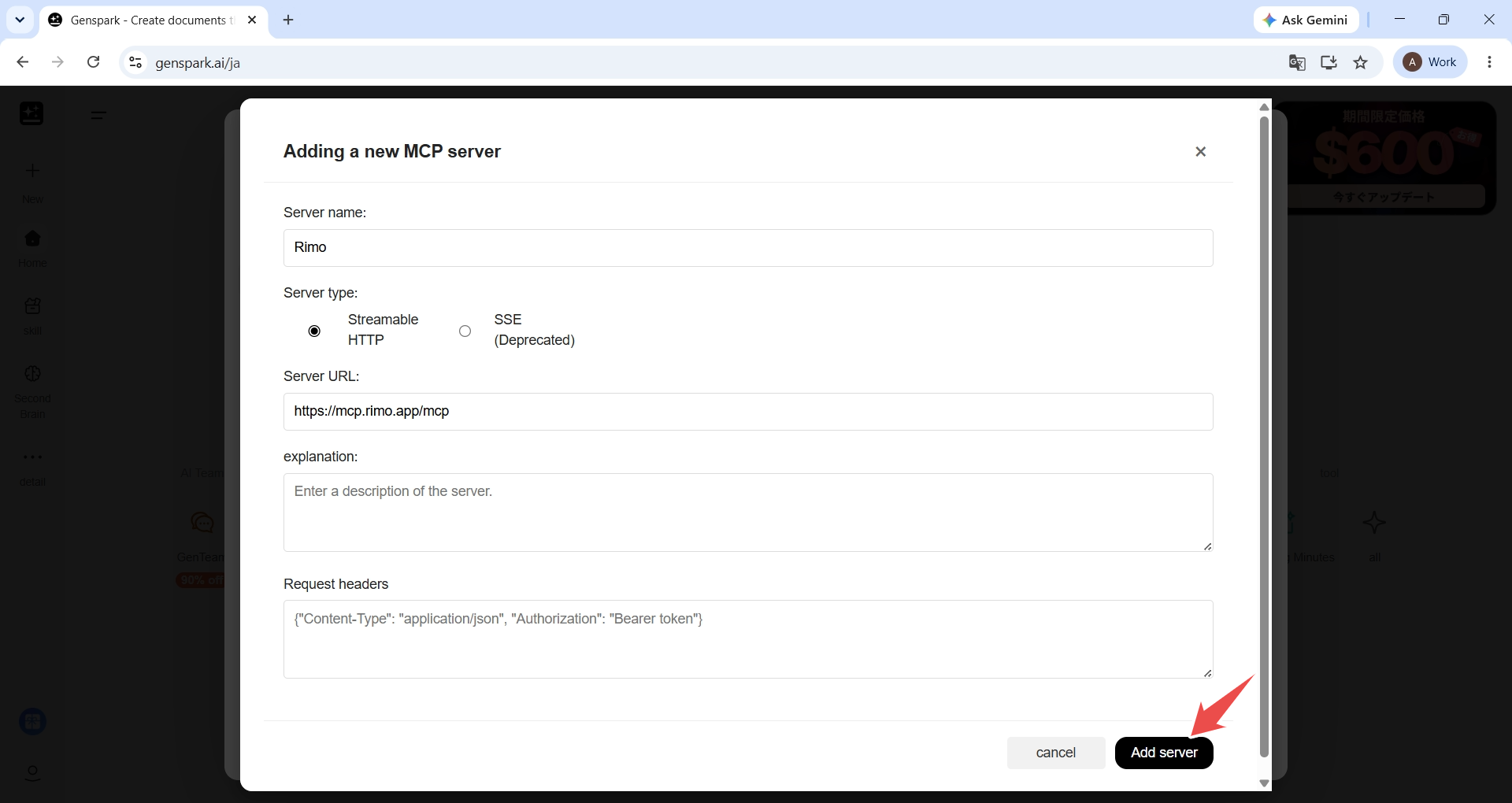
Fill in the form, then select Add server:
- Server name:
Rimo - Server type: Streamable HTTP
- Server URL:
https://mcp.rimo.app/mcp - Description:
Rimo — list, read, search, and ask across your meeting notes, transcripts, and documents.
Leave Request headers empty — you sign in to Rimo in the next step, so there is nothing to paste here.
6. Sign in to Rimo and allow access
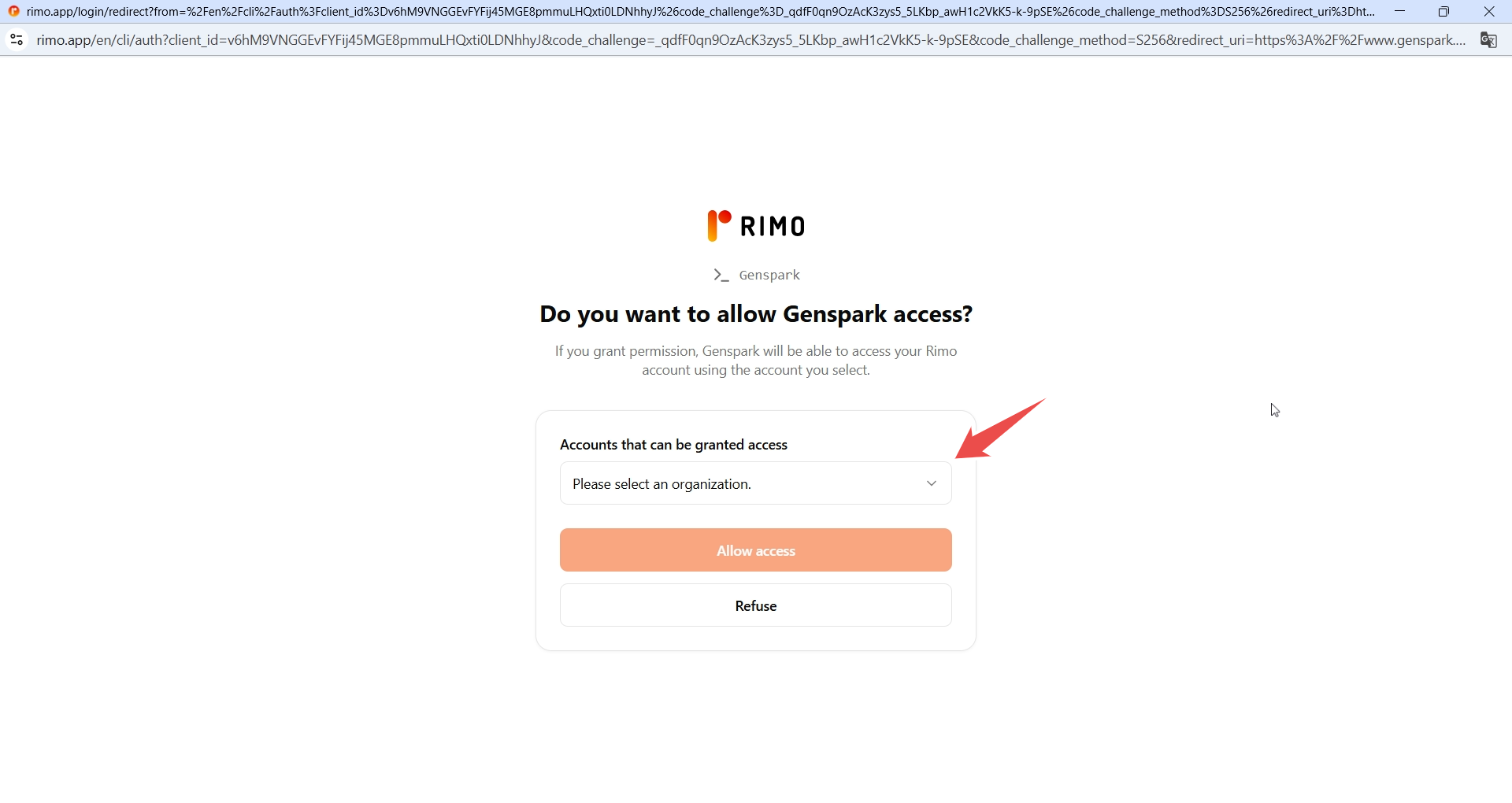
Rimo opens in your browser and asks whether to allow access to Genspark. Sign in if you're prompted to, then under Accounts that can be granted access choose the Rimo organization Genspark may use and select Allow access.
7. Check that Rimo is connected
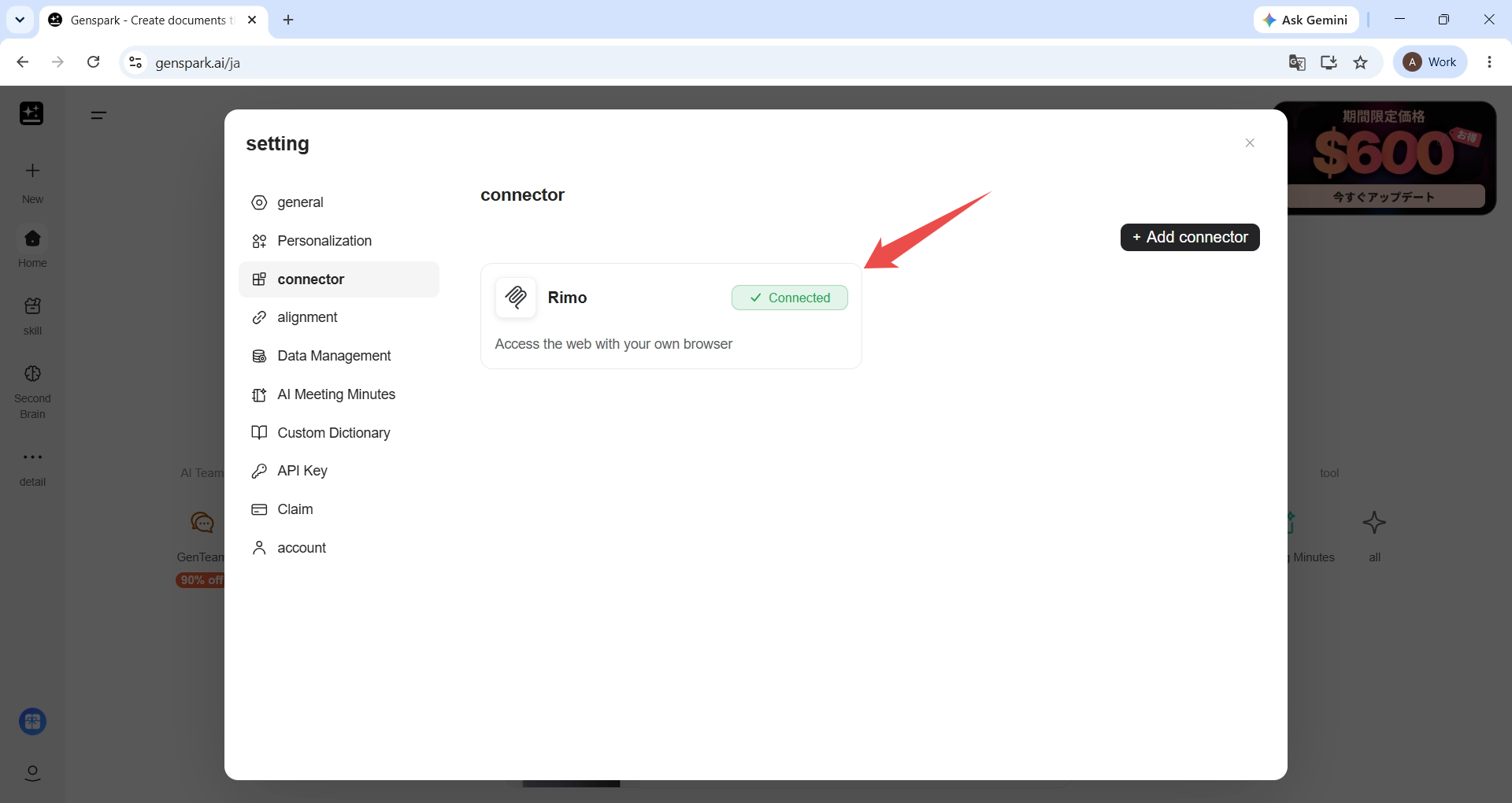
Back in Genspark, Rimo is listed on the Connector page with a Connected label.
8. Ask your first question
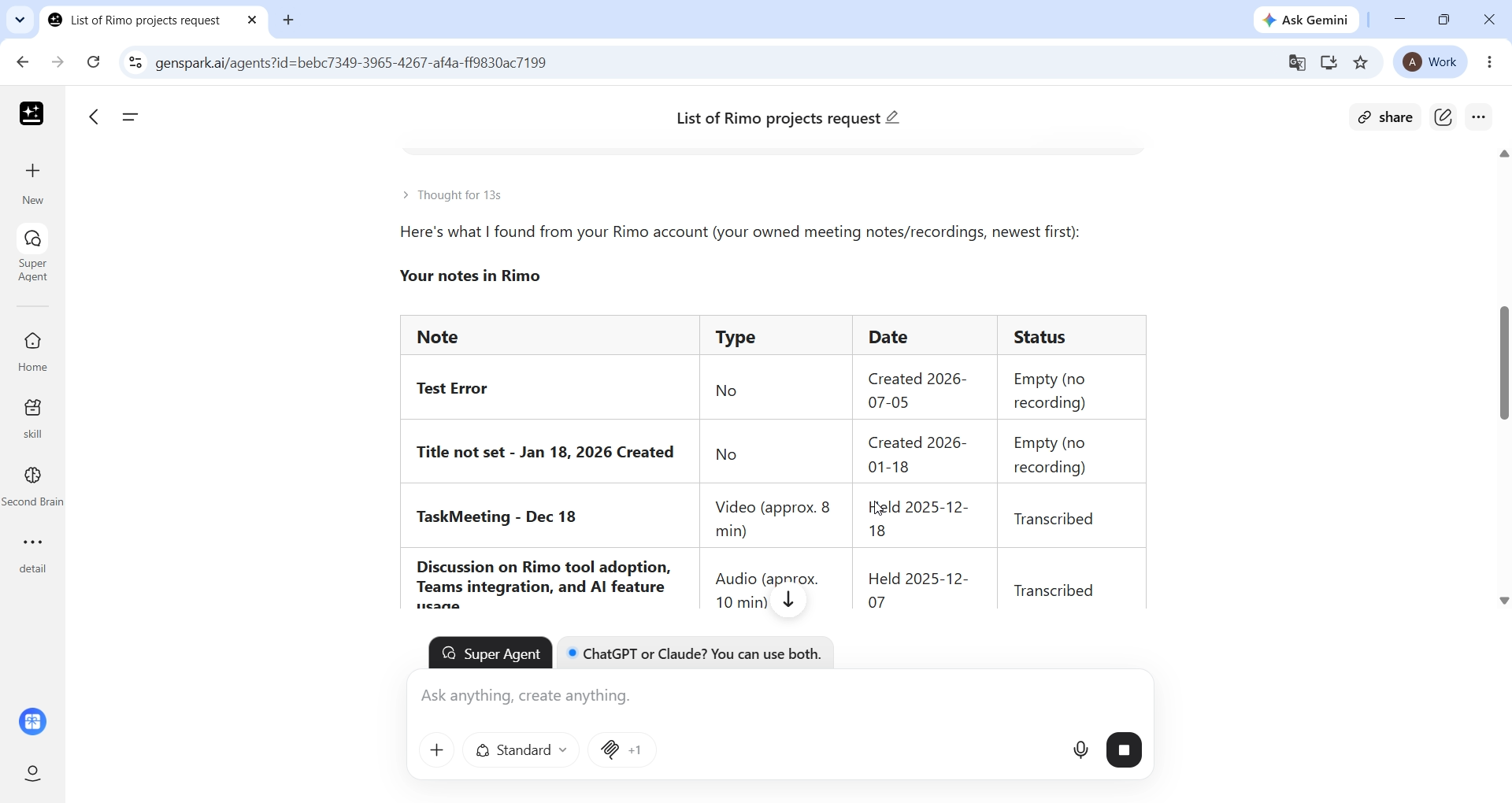
Open Super Agent and ask in plain language. A listing question is the quickest way to confirm the connection works:
Give me a list of my projects at Rimo.Genspark calls Rimo and answers from the notes your own Rimo account can see.
From there, ask about a meeting the way you'd ask a colleague — see Example things to ask.
Example things to ask
Name the meeting you mean — "my last meeting", "last week's meetings", "our client meeting" — and ask:
- "Give me a list of my projects at Rimo."
- "Tell me about my last Rimo meeting."
- "What were the key decisions from last week's meetings?"
- "What action items came out of our client meeting?"
- "Who attended the meeting?"
- "How long did the meeting last?"
- "Find the meeting where we discussed the Q3 roadmap."
- "What did we decide about the product launch?"
You only ever see what you can see in Rimo, and the connection is read-only — nothing it does changes anything in your notes. For the full list of what it can reach, see What you can do with MCP.
Good to know
- Ask in Super Agent. That's where Genspark uses your Rimo connection.
- Say Rimo in the question — "my Rimo notes", "my projects at Rimo" — so Genspark reaches for your meeting notes rather than answering from elsewhere.
- Pick Streamable HTTP as the server type. The other option in the form, SSE (Deprecated), is not the one to use.
- One Rimo organization at a time. The organization you pick at Allow access is the one Genspark sees. To use a different one, remove the Rimo connector and add it again, choosing the other organization.
Official Genspark help
- Genspark Help Center
- Connectors & Integrations — Genspark's own guide to its connector catalogue
See also
- Rimo in Others — every other tool Rimo works in
- What you can do with MCP — the tools and example prompts, once you are connected
- Rimo in Claude — the same thing for Claude
- Rimo in ChatGPT — the same thing for ChatGPT
- Rimo in Gemini — the same thing for Gemini Spark
- Rimo in Notion — the same thing for a Notion Custom Agent
- Rimo in Microsoft Copilot — connect through a Copilot Studio agent using DCR
- Authentication — how Rimo sign-in and accounts work